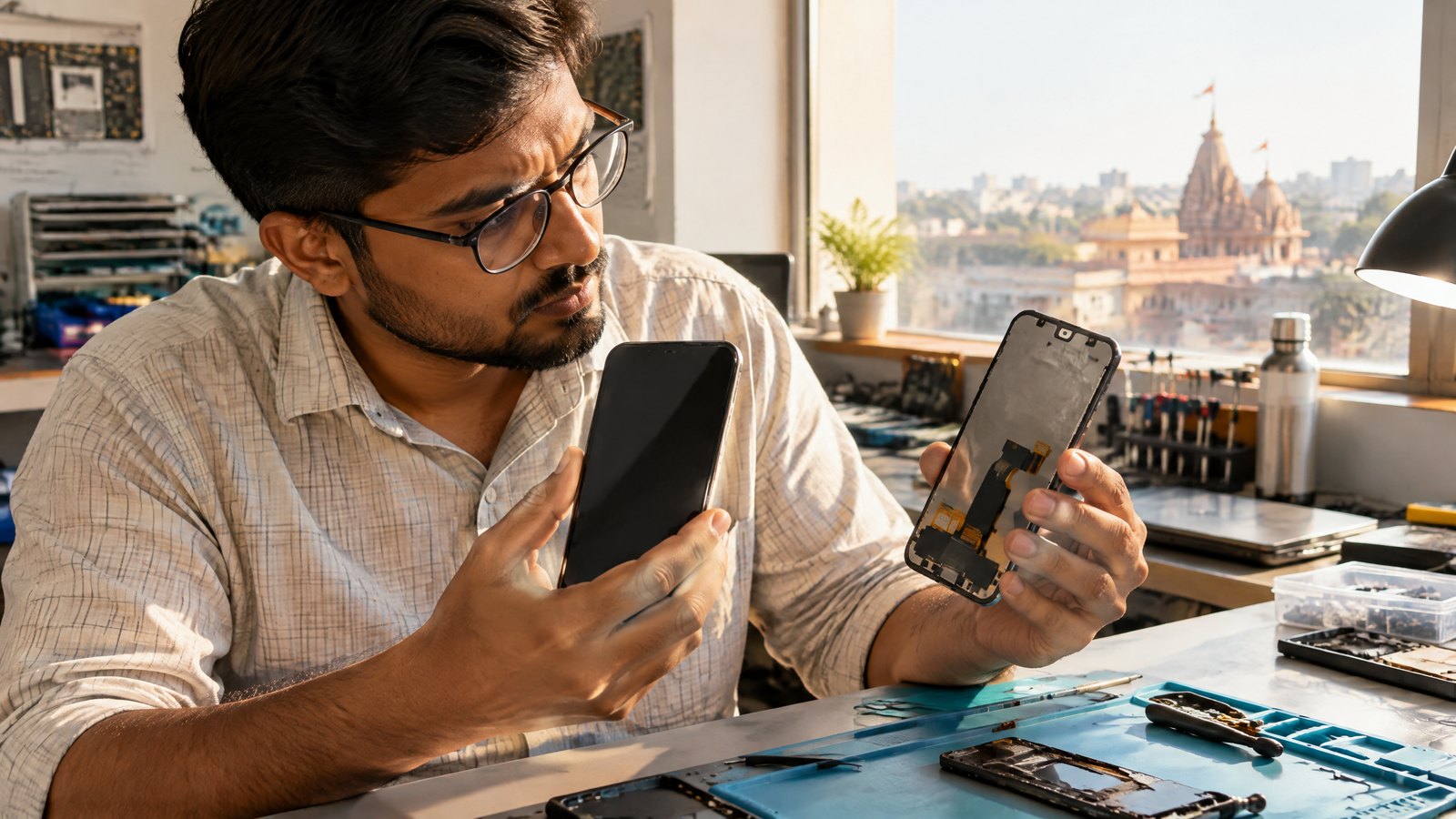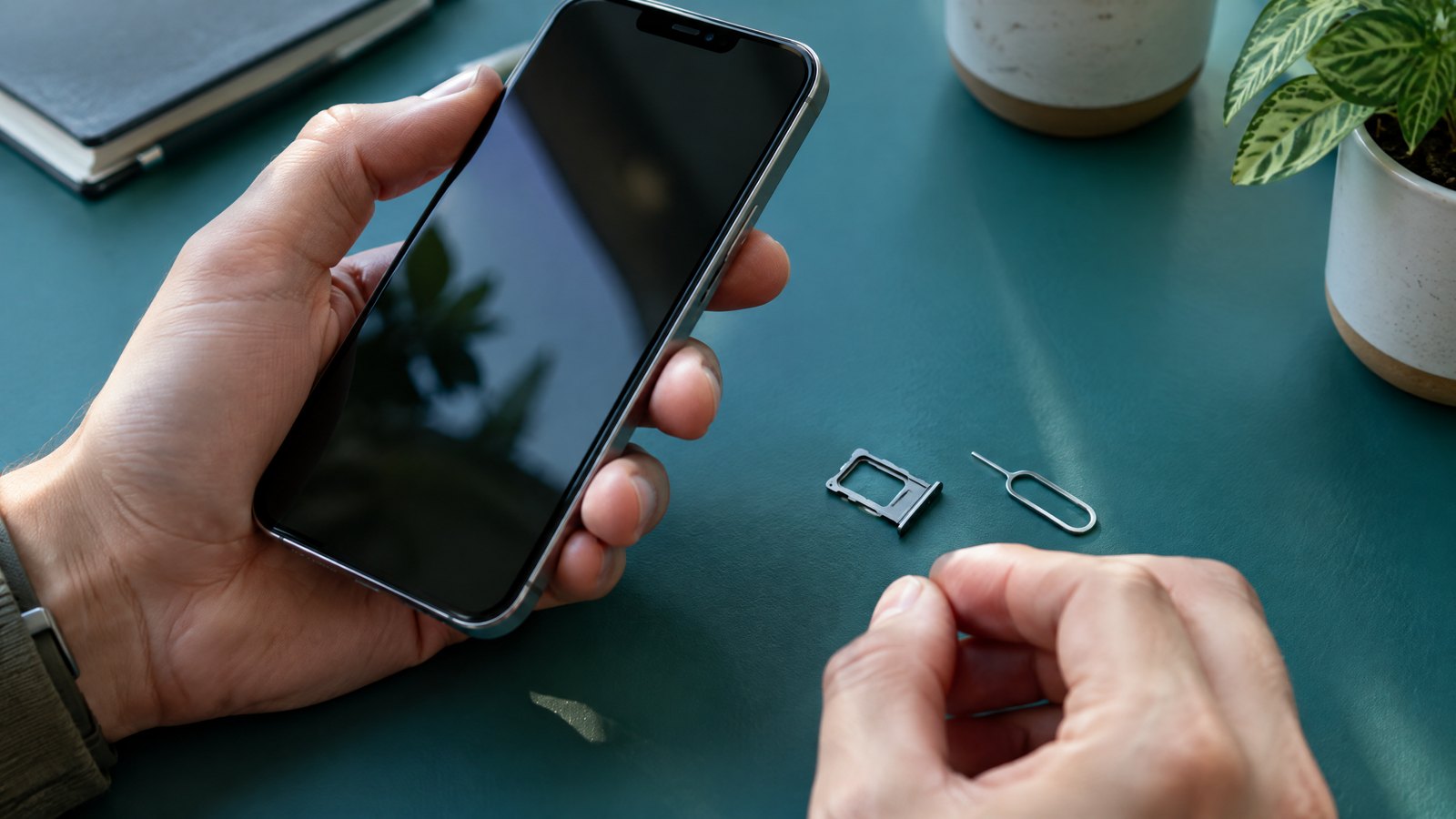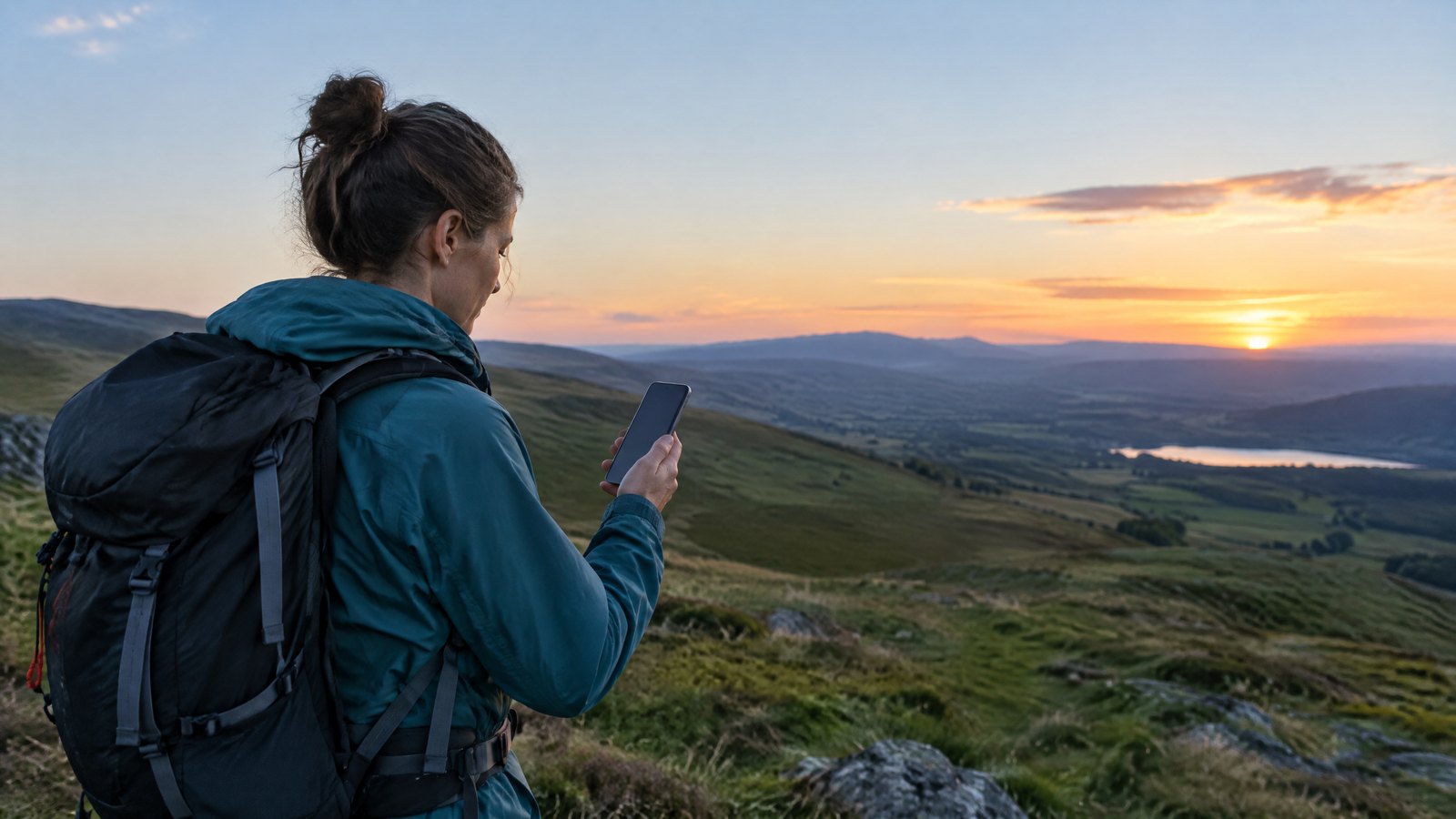
When a phone says it is connected, the useful question is connected to what—and for which job? Cellular is the usual choice away from a router. Wi-Fi is normally the better first option for a stable home or office internet connection. Bluetooth is for nearby accessories, not internet access. An eSIM changes how your mobile plan is stored and activated, not the strength of a signal. Satellite features are specialised fallbacks, not a replacement for everyday mobile service. This guide starts with that decision, so a weak signal, dropped earbuds or travel-plan change does not turn into one vague ‘network problem’.
This article is part of the consumer technology guide library.
Start with the connection you need right now
Use cellular when you are out of Wi-Fi range and need internet, calls or texts through your mobile plan. Use Wi-Fi when you have a trusted router or hotspot and want to connect locally to its internet service. Use Bluetooth when the other device is close: earbuds, a smartwatch, car system, keyboard or tracker are typical examples. These radios can be on at the same time, but they do different jobs. A phone on Wi-Fi may still retain cellular for calls, emergency handling or a switch back when Wi-Fi drops.
The fastest route to a sensible choice is to identify both place and task. At home, a video call that stutters near the router is usually a Wi-Fi, broadband or app problem before it is a mobile-data problem. On a train or in a cab, a payment app needing data is usually a cellular question. Pairing a new neckband is a Bluetooth question. Moving your mobile number to a new handset is an eSIM or physical-SIM question. A remote trek without either a carrier signal or a router calls for careful, device-specific satellite planning rather than optimism.
Do not use a status icon as a scorecard. Bars and radio labels are incomplete hints. They do not show how busy a cell is, whether a router has working broadband, whether your data plan permits the service, or whether the app’s own server is slow. The practical decision tree below is designed to eliminate the most likely mismatch first.
- Need internet or a normal phone call away from a known router? Start with your eligible cellular line and local coverage.
- At home, work or a trusted venue with a working router? Try Wi-Fi first, then check whether the router itself reaches the internet.
- Need an accessory within the same room or car? Pair over Bluetooth; it does not provide general internet access.
- Changing plans, numbers or phones? Check eSIM support with both the handset maker and your carrier before removing a physical SIM.
- No cellular and no Wi-Fi in a remote area? Check the exact phone, service type, country availability and sky-view requirements for satellite features.
Cellular: choose it for mobility, then check the four dependencies
Cellular service is the phone’s wide-area connection to your operator. It is the appropriate default for maps, UPI confirmation, messages and calls when you leave a known Wi-Fi network. Yet a compatible phone alone does not create service. Your specific model needs relevant local radio support, your account needs an active and suitable plan, the operator needs usable coverage where you are, and the phone needs to register successfully on that line. A failure in any one of these can look like ‘the internet is down’.
In India, check the model’s official regional specifications rather than assuming a version sold in another market has identical radio support. Then check the operator’s current coverage information for the places you actually use: home, office, commute route and travel destination. An outdoor map is useful planning evidence, but it cannot promise performance in one flat, basement, lift or train coach. Building materials, distance from a site, terrain, maintenance and the number of people sharing resources can change the experience.
If mobile data is poor, first look for a simple cause: mobile data off for the selected line, a data limit, roaming settings, an inactive plan, a temporary carrier fault or a weak indoor signal. A quick comparison outside or near a window can show whether the building is part of the problem, but it is not a coverage certification. Avoid treating one speed-test result as a guarantee. It consumes data and reflects one place, time, server path and moment of network load.
Calls have a separate practical question. A phone may show data service but still fail a call because of account, carrier provisioning, network or calling-setting issues. If you have a dual-SIM phone, confirm which line is selected for mobile data and which line is chosen for voice. Changing the data line will not automatically solve a number-specific calling problem.
- Confirm the mobile line is active and the intended line is selected for data or calls.
- Check the handset’s India-market specifications and your operator’s current local guidance.
- Separate a repeatable indoor weak spot from a broad claim that an entire city has no service.
- Ask your carrier for account and network help if normal service stays unavailable; only the carrier can check the subscription and network side.
Wi-Fi: use it for a nearby internet connection, not as a blanket cure
Wi-Fi connects your phone to a local access point such as a home router, office network or personal hotspot. The router still needs a working backhaul—usually fibre, cable or a mobile connection—to reach the internet. That distinction matters. Your phone can show full Wi-Fi signal while every website fails because the broadband link or router is down. Conversely, a modest Wi-Fi signal can be perfectly usable if the router’s internet connection and local radio conditions are healthy.
At home, stay close enough to test the router before rearranging every phone setting. If only one room is bad, walls, floors, metal, appliances and router placement may be reducing the usable signal. If every device fails, test whether the router has an internet outage or needs attention. If only your phone fails, forget and rejoin the network only when you know the password and understand that this can remove stored access. Public Wi-Fi deserves extra caution: verify the venue name, avoid bypassing certificate warnings, and do not assume a network with a familiar name is genuine.
Wi-Fi Calling is a related but different feature. It lets a supported phone and mobile line use a Wi-Fi connection to make or receive normal voice calls where cellular coverage is limited. Apple’s support guidance says carrier support and current device software matter, and some setups ask for an emergency-services address. It also warns that not every Wi-Fi network works with the feature. That means a good router is necessary but does not by itself make Wi-Fi Calling available on your line.
Do not confuse a router name ending in ‘5G’ with mobile service. On a router, ‘5G’ may be a label chosen by the owner or shorthand for a Wi-Fi band. It cannot identify a carrier connection or predict speed. For a fair diagnosis, note whether the phone is using Wi-Fi or mobile data before comparing results.
- Check that Wi-Fi is connected to the intended router and that the router itself has internet access.
- Compare the same phone near the router and in the troubled room; do not treat that comparison as a laboratory measurement.
- For Wi-Fi Calling, verify the carrier, handset, line setting and any required emergency-information step.
- On public Wi-Fi, verify the network with staff when possible and use your normal account-security habits.
Bluetooth: reserve it for nearby devices and expect the room to matter
Bluetooth is a short-range wireless link between devices. It is the right tool for listening through wireless earphones, taking a call in a car, syncing a watch or using a keyboard. It is not an alternative internet connection in the way Wi-Fi and cellular are. A Bluetooth accessory can appear connected while the phone still relies on Wi-Fi or cellular for streaming. This is why audio cutting out is not proof that your mobile data plan is failing.
The Bluetooth Special Interest Group says dependable range can vary from less than a metre to more than a kilometre across Bluetooth uses. That enormous span is not a promise for any phone-and-earbud pair. Effective range depends on the radios, transmit power, receiver sensitivity, antenna design and the path between devices. Walls, glass, metal and concrete can attenuate or scatter the signal. A crowded bag, a body between phone and earbuds, or a car’s layout can therefore matter more than the version number printed on a box.
For a first check, put the accessory close to the phone, charge both devices, turn Bluetooth off and on, then reconnect through the phone’s normal settings. If the accessory appears in a long list of old pairings, remove only the entry you are certain you want to forget; that normally means pairing it again later. Firmware and menu names vary by brand, so use the maker’s support instructions rather than copying a reset sequence for a different model.
Bluetooth can also request sensitive permissions for contacts, notifications or location-related functions depending on the accessory and phone. Grant only what the feature needs, and review an unfamiliar pairing request before accepting it. An unexpected device name is a reason to stop and check, not a reason to keep tapping through prompts.
- Use Bluetooth for an accessory nearby, not for general online access.
- Test close range before blaming distance, then consider walls, pockets and vehicle interiors.
- Confirm the right accessory is selected for audio or calls; a phone can stay paired to more than one device.
- Do not approve unknown pairing or permission requests just to clear a notification.
eSIM: a digital plan container, not a second network
An eSIM is a digital SIM profile that is downloaded to compatible hardware instead of inserted as a removable card. It authenticates your line to a mobile operator in the same broad role as a physical SIM; it does not add coverage, make a plan cheaper, or turn a Wi-Fi-only tablet into a phone unless the device and carrier support cellular service. GSMA describes consumer eSIMs as allowing multiple operator profiles to be stored, with only one used at a time. The number of profiles a phone can store and how many lines can operate together are model-specific, so check the exact device documentation.
Activation is still controlled by the carrier. Apple’s India carrier directory lists Airtel, Reliance Jio and Vi for iPhone eSIM activation methods, but that is not a universal promise for every plan, model or Android device. Apple’s setup instructions also show that a carrier may use a digital activation, transfer flow, QR code, app, link or manual details. Android’s implementation documentation similarly describes carrier-supplied activation codes and carrier-app flows. The shared lesson is simple: use an activation path that your carrier explicitly provides for your exact phone.
Before changing a physical SIM to eSIM or moving an eSIM, make a short continuity plan. Keep access to the old phone or SIM until the new line actually works. Use secure account recovery options, because SMS-based verification may arrive on the line being moved. Save a carrier support route and do not post a QR code or activation details online. Once a transfer completes, the previous line or SIM may be deactivated; that is expected in many transfer flows, not necessarily a fault.
For travel, an unlocked phone may let you add a local or travel eSIM, but roaming, local identification rules, number support, data allowances and tethering terms vary. Do not remove your Indian line before deciding which line will receive banking messages and calls. Dual-SIM settings can also affect which line provides data, so label each line clearly in settings.
- Verify that the exact handset variant supports eSIM and is not carrier-locked for the intended use.
- Confirm your carrier, plan and activation method before requesting a conversion or transfer.
- Maintain access to your old line until a test call or data session confirms the new line is live.
- Treat eSIM QR codes, activation codes and account one-time passwords as sensitive information.
Satellite: treat it as a narrow fallback with country and device rules
Satellite connectivity deserves the strictest decision check. It can be useful when you are beyond cellular and Wi-Fi coverage, but it is not automatically ordinary messaging, voice calling or broadband. The available feature can be emergency-only, limited messaging, location sharing or another operator-specific service. It may require a recent device, particular software, a supported country, a clear view of the sky and an account or service arrangement. Read the feature name rather than relying on the broad phrase ‘satellite-ready’.
Apple’s Emergency SOS via satellite guidance is a clear example of the limit. The service is meant for exceptional circumstances when no other means of reaching emergency services are available. Its documented flow requires being outdoors with a clear view of the sky and horizon, and its country list does not include India at the retrieved date. That does not settle every satellite product or every future Indian service; it does mean an India-based buyer must not assume an imported iPhone’s emergency satellite feature will work locally.
TRAI’s April 2026 consultation paper notes that direct-to-device satellite service can use ordinary consumer smartphones and is primarily intended to fill coverage gaps in remote areas, oceans or emergencies. A consultation is not a consumer launch announcement. Regulation, authorisation, spectrum, handset compatibility and service-provider terms remain material. Until an operator and handset maker state a feature is available for your exact location and device, plan for normal safety measures: tell someone your route, carry power and offline maps, and use established emergency channels where reachable.
If you are comparing phones for an expedition, create a written checklist: the exact model and regional version, the exact satellite feature, India availability, supported country of use, cost after any included period, what it can send, sky-view conditions, emergency workflow and backup plan. This is more useful than a future-looking specification sheet because satellite capability is tightly bounded by policy and service implementation.
- No cellular plus no Wi-Fi does not automatically mean a satellite feature is available or suitable.
- Check whether the feature is emergency-only, messaging-only or a broader service, and verify India availability for the exact model.
- Expect outdoor use and a clear view of the sky; terrain, trees, buildings and weather can affect practical use.
- Treat a regulator consultation as evidence of policy work, not proof that a consumer service is live.
Smartphone connectivity questions people ask
Connection choices are easiest when the job, place and supported service are clear. These answers provide a starting point, but your phone model, carrier plan, router and region determine what is actually available.
Should I use Wi-Fi or mobile data at home?
Use a trusted, working home Wi-Fi network for ordinary home internet use, then keep mobile data available as a fallback if needed. If Wi-Fi shows as connected but pages will not load, check the router and broadband service before assuming the phone is faulty.
Does Bluetooth give my phone internet?
Normally, no. Bluetooth links your phone to nearby accessories such as earbuds, watches and car systems. The phone’s internet still usually comes from Wi-Fi or cellular. Some specialised tethering arrangements exist, but Bluetooth is not the normal choice for phone internet access.
Will an eSIM improve my mobile signal?
No. An eSIM changes how your carrier plan is stored and activated. Signal quality still depends on the handset, supported bands, carrier coverage, building conditions, plan status and network load.
Can I rely on satellite connectivity in India when I have no signal?
Do not rely on a generic satellite claim. Verify the exact handset, feature, Indian availability, any operator relationship and usage limits. For example, Apple’s retrieved Emergency SOS via satellite availability list did not include India. Regulatory work on satellite-to-device service is not itself a live-service guarantee.
Source notes
Reporting record
techduopulse stores source destinations privately. Public notes remain non-clickable so every visitor journey stays on this website.
eSIM profile and remote-switching source note
Primary source · eSIM: a digital plan container, not a second networkCarrier-led eSIM activation and transfer source note
Primary source · eSIM: a digital plan container, not a second networkIndia iPhone eSIM provider-directory source note
Primary source · eSIM: a digital plan container, not a second networkAndroid carrier activation-flow source note
Primary source · eSIM: a digital plan container, not a second networkWi-Fi Calling support and emergency-address source note
Primary source · Wi-Fi: use it for a nearby internet connection, not as a blanket cureBluetooth range and obstacle-limit source note
Primary source · Bluetooth: reserve it for nearby devices and expect the room to matterSatellite emergency fallback and availability source note
Primary source · Satellite: treat it as a narrow fallback with country and device rulesIndia satellite-to-device policy context source note
Primary source · Satellite: treat it as a narrow fallback with country and device rulesVersion 1: original India-focused connectivity decision tree covering cellular, Wi-Fi, Bluetooth, eSIM and satellite choices, with carrier, device, location and regulatory limits stated alongside practical checks.