If your Fitbit is not syncing, keep it near the phone, charge it, check Bluetooth and open the Google Health app to retry the sync. Then check the phone permissions and background settings that let the app keep a connection. Restart the phone and Fitbit before you disconnect anything. Current official help calls the companion service Google Health, so its menus may not say “Fitbit app.”
This article is part of the consumer technology guide library.
Start with the quickest safe Fitbit sync checks
A sync moves information collected by a Fitbit tracker or watch into the Google Health account. When the connection works, opening the app with the device nearby should trigger a sync. A missing update, wrong time or an error such as “Something went wrong. Try again (Error Code 2)” can all point to the same connection problem.
Do these checks in this order. They do not erase the tracker, delete account data or require you to re-pair it. Give the app a moment after each change rather than changing several settings at once; that makes it easier to see what fixed the issue.
This guide is for Fitbit trackers and watches. Aria Air uses Bluetooth too, but Aria and Aria 2 scales use Wi-Fi and need their own network checks.
- Bring the Fitbit close to the phone, then open the Google Health app. On the Today screen, pull down and wait for the progress indicator, or open Connections and choose Sync if that option appears.
- Check the tracker has charge. Connect it to its charger and try the sync again once charging begins.
- On the phone, turn Bluetooth off for three seconds and turn it back on. Keep Wi-Fi or mobile data available as well.
- Turn off a Fitbit Battery Saver or Bedtime mode if it is on. Google says these modes can limit background data connectivity until they are disabled.
- Open Connections in the app and select the Fitbit device to see its “Last synced” status. This separates a connection failure from an activity-data display issue.
Check the Google Health app permissions on your phone
Permissions are a common reason a Fitbit watch is not syncing with a phone even though Bluetooth looks on. The labels below are from current Google Help instructions. Phone makers and software versions can place the same setting under a slightly different name, so use the phone’s Settings search if you cannot find it.
Grant only what is needed for syncing. You can review permissions later. On Android, Google identifies Location and Nearby devices as needed for syncing; on iPhone, Bluetooth permission and the appropriate location setting are the relevant checks.
| Phone | What to check | Why it matters |
|---|---|---|
| Android | In Settings, find Apps, then Google Health, then Permissions. Check Location and, on Android 12 or later, Nearby devices. Also allow Background data and background battery use; Google’s exact menu names vary by handset. | Google says these permissions and background access support device setup, syncing and automatic syncing. |
| iPhone or iPad | In Settings, turn on Background App Refresh for Google Health. Under Privacy & Security, allow the app to use Bluetooth. For location, Google’s current instructions use Privacy & Security, Location Services, Google Health, then While Using the App. | Background refresh and Bluetooth keep the app able to maintain the device connection; location can be needed for syncing, clock updates and local weather. |
When the Fitbit app is not syncing, retry then restart
After permissions are in place, try one manual sync again with the device beside the phone. If the last-sync time does not change, restart the phone first. Once it has restarted, open the app and try again before changing any pairing settings.
Next, restart the Fitbit using the official instructions for its exact family. A restart is different from erasing or factory-resetting a device: Google says a restart turns it off and on without losing activity data. Do not push a paper clip or any object into a small sensor opening; those holes may be for a microphone or altimeter, not a reset control.
If the clock face returns but the app still has no new last-sync time, move on to updates. Check the phone software, the Google Health app in the official app store and the Fitbit device for pending updates. Do not install files from forums or messages to bypass the normal update path.
- Retry a manual sync with the Fitbit near the phone.
- Restart the phone, reopen Google Health and retry once.
- Restart the Fitbit with the official model-family instructions; do not erase it.
- Install available phone, app and Fitbit updates, then retry the sync.
Fix a Fitbit that will not sync after a phone change or account move
First, make sure you are signed in to the same Google Account that holds the Fitbit history. Current Google guidance says access to Fitbit now requires a Google Account; a Google Workspace account cannot be linked to Google Health. A new-phone setup also needs a compatible phone: Google currently lists Android 11 or later, or iOS 16.4 or later, for the app.
If you recently moved a Fitbit account into Google Health, missing historical entries may be a transfer delay rather than a failed tracker. Google says a large historical transfer can take up to 48 hours. Check the date range after that period before assuming that current activity is gone.
For a normal move to a new Android phone, Google says data in Google Health is stored in the cloud. Use the same account on the new phone and follow its on-screen permission prompts. Do not create a second account just to test syncing; it can make it harder to tell which account holds the history.
Missing steps, sleep or activity data: choose the right next step
Use the last-sync time as the decision point. If it is old, treat this as a connection problem and finish the checks above. If it is recent but one day or metric looks incomplete, check that date in the app and allow a little time for the display to refresh before changing the connection.
A tracker restart is the safe device action because it does not delete activity data. An erase, factory reset or account deletion is not a routine sync fix and is outside this guide. If you have activity that is important and has not appeared in the account, do not take a destructive step merely to clear an error.
There is one special case: after a recent account migration, Google says large historical transfers can take up to 48 hours. If the device has a new last-sync time but older records are still missing, wait through that window before rebuilding the connection.
Only then: refresh the device connection or contact support
Use this stage only after the nearby-device, power, Bluetooth, permissions, manual-sync, restart and update checks failed. It is more disruptive because it removes the pairing and asks you to set it up again, even though it is not the same as erasing the Fitbit.
Before you start, confirm the Google Account in the app and make sure you can sign in to it. If another phone or tablet nearby is signed into the same account, Google recommends removing the app there and unpairing the Fitbit on that device first. This avoids two nearby devices competing for the connection.
Google’s current route is Connections, select the Fitbit, Disconnect device, then forget it in the phone’s Bluetooth settings. Reopen Google Health, choose Connections, Add device and follow the prompts. Stop and contact official Google Health/Fitbit support if reconnecting fails, if the tracker will not restart, or if you would need to erase it to continue.
- Use connection refresh only after the safer checks have failed.
- Confirm the correct Google Account before disconnecting.
- Do not factory-reset or erase the Fitbit as a speculative sync fix.
- Contact official support after a failed reconnect or a device-restart failure.
Fitbit not syncing FAQs
These answers reflect official Google Health Help pages accessed on 15 October 2026. App labels, available updates and phone-specific Settings menus can change, so follow the current in-app prompt where it differs.
Why is my Fitbit not syncing with my phone?
Common causes are distance from the phone, Bluetooth or network trouble, a low device charge, restricted app permissions or background access, and Battery Saver or Bedtime mode. Check those first, then retry a manual sync before rebuilding the pairing.
How do I manually sync a Fitbit tracker or watch?
Keep the Fitbit near the phone and open Google Health. On the Today screen, pull down and wait for the progress indicator, or open Connections and use Sync if it is shown. You can check Connections and your device for the last-sync status.
Why is the Fitbit app now called Google Health in this guide?
Google’s current official help pages use the name Google Health app for the service that connects Fitbit devices. Readers may still search for the Fitbit app, and some older screens or instructions may use that wording.
Will restarting my Fitbit delete steps or sleep data?
Google says a restart turns the Fitbit off and on without losing activity data. A restart is different from erasing or factory-resetting a device, which should not be your first response to a sync failure.
Should I disconnect and reconnect my Fitbit when it will not sync?
Only after checking proximity, charge, Bluetooth, permissions, background settings, manual sync, restarts and updates. Confirm that you are using the correct Google Account first, then follow the app’s disconnect and add-device prompts. If that fails, contact official support rather than erasing the tracker.
Editorial image note
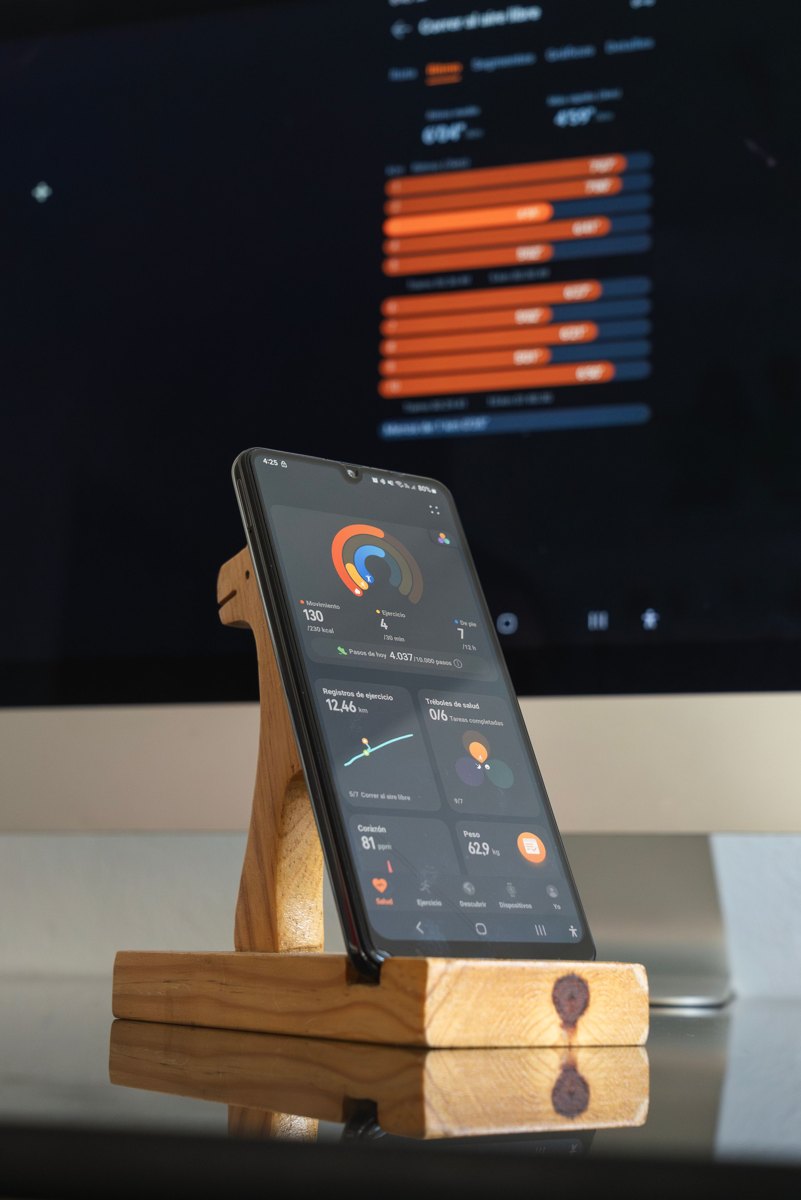
The hero image is a contextual stock photograph of a generic health-data dashboard. It is not a Fitbit device, a Google Health app screenshot or a representation of a particular phone model.
About the photograph
Contextual stock photo of a generic health-data dashboard; it is not a Fitbit or Google Health app screen.
Source notes
Reporting record
techduopulse stores source destinations privately. Public notes remain non-clickable so every visitor journey stays on this website.
Source note: Google Health Help sync troubleshooting
Primary source · Tracker and watch connection, manual sync, iPhone/iPad and Android steps, update, reconnect and migration-delay guidanceSource note: Google Health Help Android app guidance
Primary source · Android permission, background data, battery and new-phone cloud-data guidanceSource note: Google Health Help restart guidance
Primary source · Restart use cases, no-activity-data-loss statement and sensor-opening warningSource note: Google Health app compatibility requirements
Primary source · Google Account and Android/iOS version requirements; named compatibility caveatsSource note: Google Health Help account-migration guidance
Primary source · Post-19 May 2026 Google Account requirement, historical-data retention and Google Workspace limitationInitial 15 October 2026 consumer troubleshooting explainer. It uses current Google Health Help guidance, clarifies the present Google Health app naming without discarding common Fitbit search language, puts reversible connection and permission checks before any connection rebuild, distinguishes a restart from an erase, and adds Android, iPhone/iPad, account-migration and escalation limits.