Apple TV 4K setup is usually a power cable, an HDMI cable, the right TV input and a few onscreen choices. Start there, then test one link in the chain at a time if something is wrong. For a blank picture, missing sound, a remote that will not respond or a network problem, reseating cables and isolating the TV, receiver and router are safer and more useful first moves than erasing the box.
This article is part of the consumer technology guide library.
What to check before Apple TV 4K setup
Put the Apple TV where its cable connections will not be strained and where you can reach it. You need mains power, a television or monitor with HDMI, an HDMI cable and home internet. If you plan to watch compatible 4K HDR content, Apple says to use an HDMI 2.0-or-later cable with a 4K/HDR-capable display. Its current setup guidance says an HDMI 2.1 cable is needed to access all device features, so do not assume an older cable is the best place to save money.
Before plugging anything in, note which numbered HDMI port you will use on the television. The input label on the TV remote or on-screen input list must match that physical port. If you use a soundbar, AV receiver or HDMI switch, begin with the simplest path if possible: Apple TV directly into the TV. Add the other equipment after the basic picture and sound work. That makes it much easier to tell whether a middle device is the problem.
Have the Wi-Fi password ready. An Apple TV model with an Ethernet port can instead be wired to the router, which removes Wi-Fi from the initial setup decision. Do not buy a cable or change a TV setting just because this guide mentions it; use the connectors and functions your own model and display actually support.
- Power socket or extension lead that is working.
- HDMI cable and a known HDMI input on the display.
- Home Wi-Fi password, or Ethernet access on a compatible Apple TV model.
- Your Apple Account sign-in details, if you choose to sign in during setup.
How to complete Apple TV 4K setup
Connect power, run HDMI from Apple TV to the chosen TV port, turn on the display and select that input. The Apple setup guide uses this order because a working TV input is needed before the rest of the process can be seen. If the setup screen does not appear, do not keep pressing remote buttons blindly. Recheck the input label and cable seating first.
Once the setup screen is visible, use the remote to choose language and country or region. Apple may offer Siri during setup, but its availability and commands vary by language and country or region. Treat an unavailable option as a regional or configuration limit, not as proof the box is faulty.
Apple offers two routes for account and network setup. Set Up with iPhone can transfer Apple Account and Wi-Fi settings after you unlock the iPhone, hold it near Apple TV and accept the prompts on both screens. Set Up Manually lets you join your home Wi-Fi and sign in on the television. Choose the manual route if you prefer to enter details yourself or if the iPhone hand-off is not offered.
After reaching the Home screen, pause before changing video or audio formats. First confirm that an app opens, a short video plays, and the remote volume and power behaviour are sensible. That baseline prevents an optional format change from being mistaken for a setup failure.
- Connect Apple TV to power and to one known HDMI input on the TV.
- Select that same HDMI input on the TV and wait for the setup screen.
- Choose language and region, then select either iPhone-assisted or manual setup.
- Join the intended home network or use Ethernet when your model supports it.
- Sign in only when you are ready, then test picture, sound and remote control before adding other equipment.
Apple TV 4K picture settings: fix a black, flickering or wrong picture
For a black screen, begin outside Apple TV settings. Apple Support’s first checks are to unplug and firmly reconnect both ends of the HDMI cable, try another compatible HDMI cable, confirm the television input, and try another TV HDMI port. Start with HDMI 1 or Input 1 if the television maker recommends it. A cable can look fine and still be the weak link, especially with 4K HDR signals.
If Apple TV is connected through a switch or AV receiver, connect it directly to the television for one test. A picture that returns in the direct connection does not prove Apple TV is defective. It points to the switch, receiver, its HDMI configuration or the link between those devices. Put the extra equipment back only after checking its manual or support advice.
A brief blank or flickering screen when playback starts or stops can be related to the display changing format. Apple says this can happen with Match Dynamic Range or Match Frame Rate under Video and Audio, then Match Content. If the display settles and playback resumes, that behaviour can be normal. If it does not recover, turn off one matching option for a test rather than changing several advanced settings at once.
Use Apple’s resolution-recovery shortcut only when you can see enough to follow its prompts: on Apple TV 4K, hold Menu and Volume Down for five seconds, then wait as it cycles resolutions. Select a working resolution when it appears. Stop and seek service if there is no power response after the cable, outlet and direct-TV checks.
| What you see | First safe check | What the result tells you |
|---|---|---|
| No picture at all | Confirm the TV input and reseat HDMI at both ends | Rules out the most common input or loose-cable mistake |
| Picture returns with direct TV connection | Leave the switch or receiver out temporarily | The intermediate HDMI path needs attention |
| Short flicker when a programme starts | Check Match Content settings one at a time | The TV may be switching frame rate or dynamic range |
Apple TV 4K no sound: identify the audio path before changing formats
Start by deciding where sound should come from: the television speakers, a soundbar or an AV receiver. Check the TV or receiver is on the right input and is not muted. Then reseat the HDMI cable. Apple’s no-sound guidance also recommends trying another compatible cable and power-cycling the TV, Apple TV and any receiver. Test after each move so you know which change mattered.
If a switch or receiver is in the chain, try Apple TV directly into the television. Sound returning in that arrangement is a useful stop point: the TV and Apple TV can communicate, so the next check belongs with the soundbar, receiver or switch. Do not repeatedly reconfigure Apple TV to compensate for equipment that is not passing audio correctly.
Only after the physical path is checked should you use the reversible audio controls in Settings, Video and Audio. Apple suggests temporarily changing Audio Format, turning off Continuous Audio, setting Audio Mode to 16 bit, and setting Audio Output to Apple TV when using TV speakers, a soundbar or a receiver. These are tests, not universal ‘best’ settings. Restore the option that worked and avoid stacking several changes.
If the remote plays and pauses but its volume buttons do nothing, the issue may be TV or receiver control rather than streaming audio. Apple’s current guide offers Auto volume control for most setups, HDMI for compatible HDMI-CEC equipment, or IR options for hardware that needs them. Use only choices presented on your Apple TV and verify the television or receiver manual before assuming HDMI-CEC is available.
- Check the intended TV, soundbar or receiver input and mute state.
- Reseat HDMI, then test with a different compatible cable if available.
- Power-cycle the Apple TV, display and receiver, then test again.
- Bypass a switch or receiver by connecting directly to the TV.
- Try one Apple TV audio setting change at a time only after the hardware path is known good.
Apple TV 4K remote not working: charge, pair, then restart
A remote problem can look like an Apple TV problem, so work from the remote outward. Charge it for 30 minutes with the appropriate USB cable and wall charger. Then point it at Apple TV from close range. Apple’s India support instructions say to hold Back, or Menu on remotes that have it, with Volume Up to pair. If an on-screen prompt asks you to place the remote on Apple TV, follow that prompt.
If pairing fails, Apple says to unplug Apple TV, wait six seconds, reconnect power and retry. If the remote still will not pair, restart the remote by holding the TV/Control Centre button and Volume Down for about five seconds. Wait 5 to 10 seconds, press a button and look for the Remote Connected notice before trying pairing again.
On tvOS 18 or later, Settings, Remotes and Devices, then Remote can show a Bluetooth signal-strength indicator. It is not present on every software version. If it says weak, move within about 6 metres and clear obstructions between the remote and the Apple TV, television, receiver and soundbar. Stop there and contact Apple Support if a charged remote cannot pair after these steps.
Wi-Fi, AirPlay and sign-in checks after setup
For an Apple TV that cannot join Wi-Fi, open Settings, Network and choose the intended network. If the network was saved with a wrong password or has changed, Apple’s guidance is to select the current network, choose Forget Network, return to Network and join it again. Do not forget the network unless you have the correct password ready.
If your Apple TV has an Ethernet cable attached, Apple says the Wi-Fi join choice will not appear. That is expected. For wireless testing, remove Ethernet and wait for the device to offer Wi-Fi; for a reliability test, connect Ethernet to the router if your model has the port. Apple TV automatically uses Ethernet when it is connected.
Restart Apple TV from Settings, System, Restart, then restart the router and modem if needed. Keep the Apple TV and router in the same room where possible and do not place the box on or within 30 cm of the router. Metal and physical obstructions can weaken the wireless path.
For AirPlay, first separate an Apple TV network fault from a phone or tablet casting fault. Test ordinary streaming on Apple TV. If that fails too, fix the Apple TV connection first. If streaming works but AirPlay does not, confirm the source device is on the intended home network rather than a guest network, keep both devices up to date, and use Apple’s AirPlay guidance for that source device. Avoid entering account passwords into a prompt you did not initiate.
When to stop troubleshooting and get help
Stop home troubleshooting when Apple TV has no response after a known-good power outlet and power cable check, when a direct TV connection still gives no stable picture, or when a charged remote repeatedly cannot pair. Those are better reasons to use Apple Support or the relevant TV, receiver or soundbar maker’s support path than to keep changing settings.
A factory reset is not a first-line cure for HDMI, TV, receiver, router or remote hardware trouble. It makes you repeat setup and sign in again, while the external fault can remain. If you eventually choose to erase the Apple TV after support recommends it, first make sure you can recover the Apple Account and any app or TV-provider sign-ins you will need.
Apple TV 4K setup FAQs
These answers reflect Apple’s current India support guidance accessed on 15 October 2026. The wording of buttons and available options can differ by Apple TV generation, remote generation, connected TV and installed tvOS version.
How do I set up Apple TV 4K for the first time?
Connect Apple TV to power and to an HDMI port on the television, select that matching TV input, then follow the on-screen choices for language, network and account setup. Apple lets eligible users choose iPhone-assisted setup or complete the process manually.
What HDMI cable do I need for Apple TV 4K?
Apple says 4K HDR viewing needs an HDMI 2.0-or-later cable and a compatible 4K/HDR TV. Its setup page says HDMI 2.1 is required to access all Apple TV features. The display and the cable both need to support the format you expect to use.
Why is my Apple TV 4K screen black or flickering?
First confirm the selected television input, reseat HDMI at both ends and try another cable or TV HDMI port. If you use a receiver or switch, connect Apple TV directly to the TV for a test. A brief flicker can occur while a compatible TV changes format when Match Content is enabled.
What should I do if the Apple TV 4K remote is not working?
Charge it for 30 minutes, point it close to Apple TV and try pairing with Back or Menu plus Volume Up. If that fails, restart the Apple TV power connection, then restart the remote with TV/Control Centre plus Volume Down before trying again.
Why is there no sound from Apple TV 4K?
Check the television, soundbar or receiver input and mute state, then reseat HDMI and restart the connected equipment. If a receiver or switch is involved, test Apple TV directly with the television. Change Apple TV audio options one at a time only after the physical audio path has been checked.
About the photograph
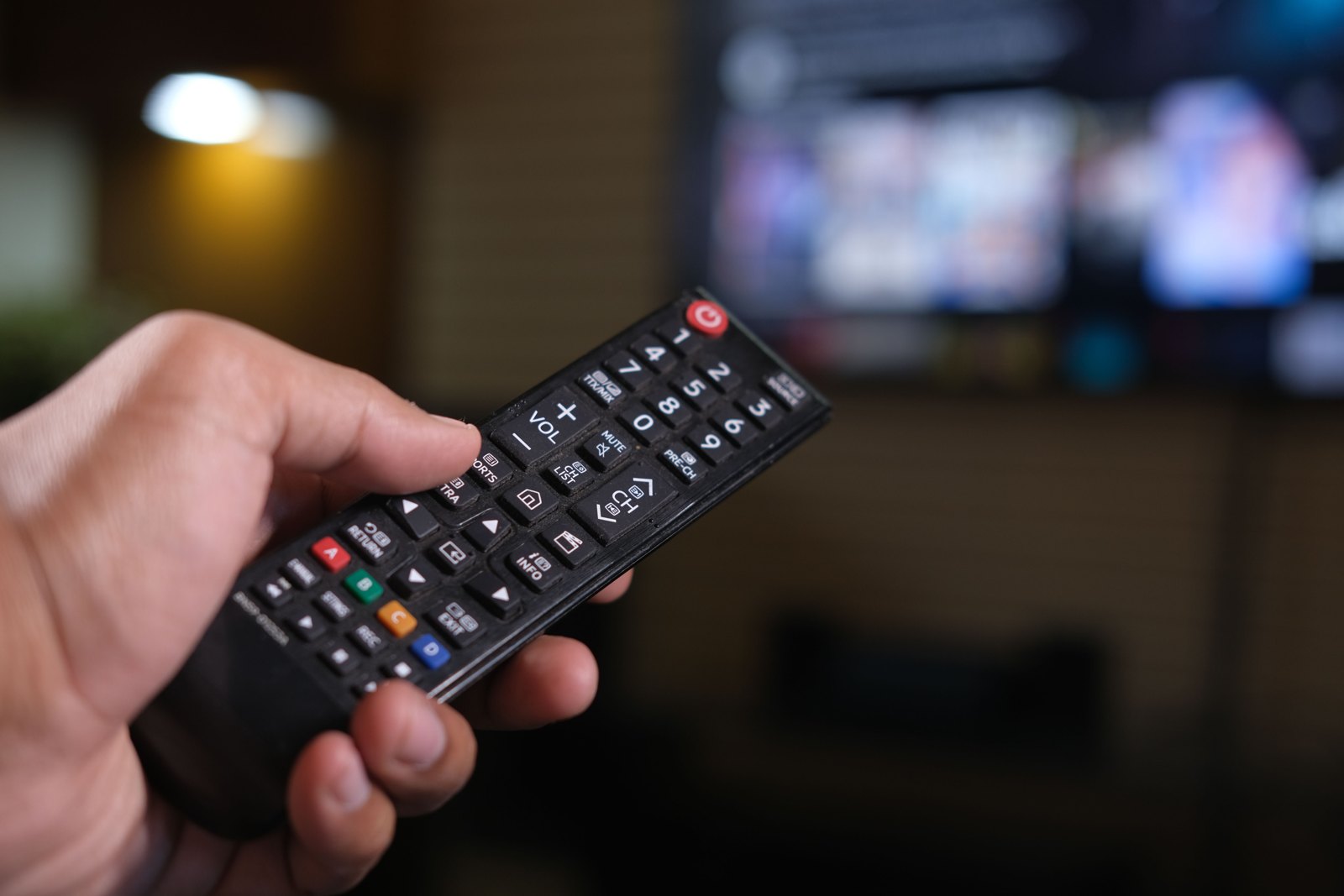
A generic television remote and screen, used as contextual imagery for setup checks; it is not an Apple TV 4K or a Siri Remote.
Source notes
Reporting record
techduopulse stores source destinations privately. Public notes remain non-clickable so every visitor journey stays on this website.
Source note: Apple Support India setup instructions
Primary source · Setup requirements, HDMI and Ethernet options, iPhone-assisted/manual setup, regional Siri limitSource note: Apple Support India display troubleshooting
Primary source · HDMI, resolution, direct-TV isolation, Match Content, power and service checksSource note: Apple Support India audio troubleshooting
Primary source · HDMI and receiver isolation, power-cycle order, Video and Audio test settingsSource note: Apple Support India remote troubleshooting
Primary source · Pairing, remote restart, 30-minute charge, tvOS 18 signal-strength check and escalationSource note: Apple Support India Wi-Fi troubleshooting
Primary source · Network rejoin, Ethernet behaviour, router placement, restart and software-update checksInitial 15 October 2026 India consumer explainer. Verifies the Apple TV 4K name and India listing privately, follows current Apple support guidance for setup, HDMI, sound, remote and Wi-Fi checks, and keeps resets last with account-recovery caution. The licensed hero is a generic TV remote image, not an Apple TV or Siri Remote product photograph.