For a CMF Speaker S or CMF Speaker M, start by putting the powered-on speaker into pairing mode with its Bluetooth button, then connect from your phone or laptop. Both models listed by Nothing India also support two connected devices, but a smooth switch still depends on the source devices and their active media apps. If sound arrives late, make the connection stable before trying a reset.
This article is part of the consumer technology guide library.
Quick answer: the safe CMF speaker setup order
Use this order: identify whether you have Speaker S or Speaker M, charge or power it on, hold the Bluetooth button for two seconds until the rear blue light flashes, and choose the speaker from the source device’s Bluetooth screen. Wait for the light to become solid before starting a video or music track. That last pause matters when you use two devices, Stereo Mode or Party Mode.
This guide applies only to the CMF Speaker S and CMF Speaker M that Nothing lists on its India store. It does not assume the same button timing or settings for CMF earbuds, headphones, an older speaker, or a similarly named third-party product. Product features can vary by region, source device, operating system and app version.
Before you pair: check the model and the easy fixes
Look at the product name on the speaker, packaging or your previous Bluetooth entry before you begin. The relevant setup controls are documented for both Speaker S and Speaker M, but it is still useful to know which one you own when you look for official support or an app update.
Do the reversible checks first. Keep the speaker and the phone or laptop nearby, make sure the source device has Bluetooth switched on, and pause any music or video that may already be playing on another paired device. Do not begin by factory-resetting the speaker or the phone. A reset creates extra work because you will need to pair again.
- Confirm that the product is CMF Speaker S or CMF Speaker M, not another CMF audio device.
- Power the speaker on and keep your phone or laptop close while you set it up.
- Pause media on any other device that may have been used with the speaker recently.
- Use the Bluetooth screen on the device you want to use; labels and layout differ between phones and computers.
- If you plan to use the Nothing X app, install updates only from the official app store.
How to pair a CMF speaker over Bluetooth
On both India product pages, Nothing documents a two-second press-and-hold of the Bluetooth button for pairing. The rear LED should flash blue while the speaker is waiting to connect. This is the reliable starting point when the speaker does not appear in your phone’s list.
Fast Pair may offer an on-screen shortcut on compatible Android, Nothing and Windows devices. It is optional. If no prompt appears, use ordinary Bluetooth settings instead; that avoids guessing whether your device, software or region supports the shortcut.
- Turn on the CMF Speaker S or Speaker M.
- Press and hold its Bluetooth button for two seconds and wait for the rear blue LED to flash.
- Open Bluetooth settings on the phone, tablet or laptop you want to use.
- Select the CMF speaker entry that appears, then accept the connection request if your device shows one.
- Wait for the rear LED to show solid blue before you start playback.
- Play one short track or video and check that the source device has selected the speaker for media output.
How to reconnect a CMF speaker to your phone
A speaker that was paired before may not reconnect to the device in your hand. Nothing’s support guidance says that, when several connection records exist, the speaker prefers the last-connected device when it powers on. That explains why a nearby laptop can take over even when you meant to use your phone.
Nothing also says the speaker tries to reconnect for 10 minutes after power-on or waking from Sleep mode. After that, it can be ready to connect but not visible to a new search. Hold the Bluetooth button until the back white LED flashes, then run a fresh Bluetooth search from the phone. This is a model-specific reconnect step, so use it instead of repeatedly toggling random phone settings.
Switching between a phone and laptop without confusion
Nothing lists dual device connections for both speaker models and says the speaker can switch automatically between a phone and laptop. Treat that as an assisted hand-off, not a promise that it will always choose the device you want. The active app, the last connection and the timing of playback can affect what you hear.
For the cleanest switch, stop or pause media on the device you are leaving, wait a moment for the new source to connect fully, then start one track or video on the device you want. Nothing specifically recommends pausing or closing background music and video apps on a connected device that is not in use. That prevents an old app from sending audio at the same time.
If the laptop keeps winning, a reversible choice is to turn off Bluetooth on the laptop briefly or disconnect the speaker there, then start playback from the phone. If you use the laptop more often, do the opposite. Do not assume there is a universal CMF menu for picking a ‘primary’ device; the official product pages do not document one.
| What you see | Most useful next action |
|---|---|
| The speaker reconnects to the wrong device after power-on | Check the last device used, pause its media, then reconnect from the device you want. |
| Two devices connect but audio starts on the wrong one | Stop background media on the unused device and allow the new connection to settle before playing. |
| The speaker is not visible after it has been on for a while | Use Nothing’s documented reconnect action: hold the Bluetooth button until the back white LED flashes, then search again. |
CMF speaker audio delay: what to try first
First separate a brief pause at connection from ongoing video lip-sync delay. Nothing says a short delay or silence can be normal while Dual Connection, Stereo Mode or Party Mode finishes connecting and switches audio channels. Wait until the connection settles, then replay the clip before changing anything.
For continued delay, keep the phone or laptop close enough for a stable wireless connection and reduce avoidable interference around the source. Pause media on the other connected device. Then retry the same clip. If only one app is late, test a second app or local audio before blaming the speaker; that helps you decide whether the issue follows the app or the connection.
Both product pages list Low Latency as a feature. Use it only if the option is available in the supported settings for your speaker and source; Nothing says availability can vary with the device, operating system, app version and region. Its listed latency figures are laboratory reference results, not a guarantee that every video will be perfectly in sync. The pages also list USB-C audio at under 60 ms latency, so a compatible direct USB-C audio connection is worth trying for a desk setup when Bluetooth delay is unacceptable.
- Wait for the connection to settle before judging the first seconds of audio.
- Pause or close media apps on the second connected device.
- Retry near the source device and remove obvious wireless interference where practical.
- Test the same clip in another app to see whether the delay follows the app.
- Try Low Latency only when it is available in your supported settings, or test compatible USB-C audio for a wired desk connection.
When pairing still fails: use this reset ladder
Do not jump straight to a factory reset. First repeat pairing mode, check whether the speaker is trying to return to another device, and use the official Nothing X app to look for a firmware update. Nothing’s support page recommends the app as an escalation path when reconnecting still fails.
If the speaker still cannot be paired after those checks, Nothing documents an eight-second Bluetooth-button press for factory reset on both Speaker S and Speaker M. This is the last ordinary home step because it removes the saved connection state: plan to set the speaker up again on every device you want to use. It is not a reason to reset your phone or laptop, and it should not be used to fix a single slow app.
Stop and seek official support instead of retrying if the unit is visibly cracked or damaged, if a liquid or dust incident is followed by malfunction, or if the documented pairing and update route has not helped. Nothing’s product safety notes say to stop using a cracked or damaged speaker if continued use could be unsafe.
- Try pairing mode again and make sure the intended phone or laptop is searching.
- Remove the immediate conflict: pause media or disconnect the device that connected last.
- Check for the latest firmware through Nothing X using its official store version.
- Only then factory-reset the speaker with the documented eight-second Bluetooth-button hold and pair it again.
- Escalate to official support if pairing still fails or the speaker is physically damaged.
CMF speaker setup FAQs
These answers apply to the CMF Speaker S and CMF Speaker M listed by Nothing India and official support material accessed on 15 October 2026. A device’s actual options can change with software, app version, region and the connected phone or computer.
How do I put a CMF Speaker S or M in pairing mode?
Nothing’s India product pages say to press and hold the Bluetooth button for two seconds. The rear LED flashes blue while the speaker is pairing. Then open Bluetooth settings on the phone or computer and select the speaker entry that appears.
Can a CMF speaker connect to a phone and laptop at the same time?
Nothing lists dual device connections for both CMF Speaker S and Speaker M and says they can switch between a phone and laptop automatically. In practice, pause media on the device you are not using and give the new connection a moment to settle before playback.
Why does my CMF speaker reconnect to the wrong device?
Nothing says the speaker preferentially reconnects to the last-connected device when it has records for several devices. Pause media or disconnect that device temporarily, then reconnect from the phone or laptop you intend to use.
Why is there a brief silence or delay when I switch devices?
Nothing says a brief wait can occur while Dual Connection, Stereo Mode or Party Mode completes a connection and changes audio channels. Wait for the connection to stabilise and make sure media is not still playing in the background on the other device.
Will Low Latency mode remove all video delay?
No. Nothing lists Low Latency for both models and says real latency varies with the source device, codec, content, wireless environment and software. Treat it as a supported troubleshooting option, not a promise of perfect lip-sync in every app.
Editorial note
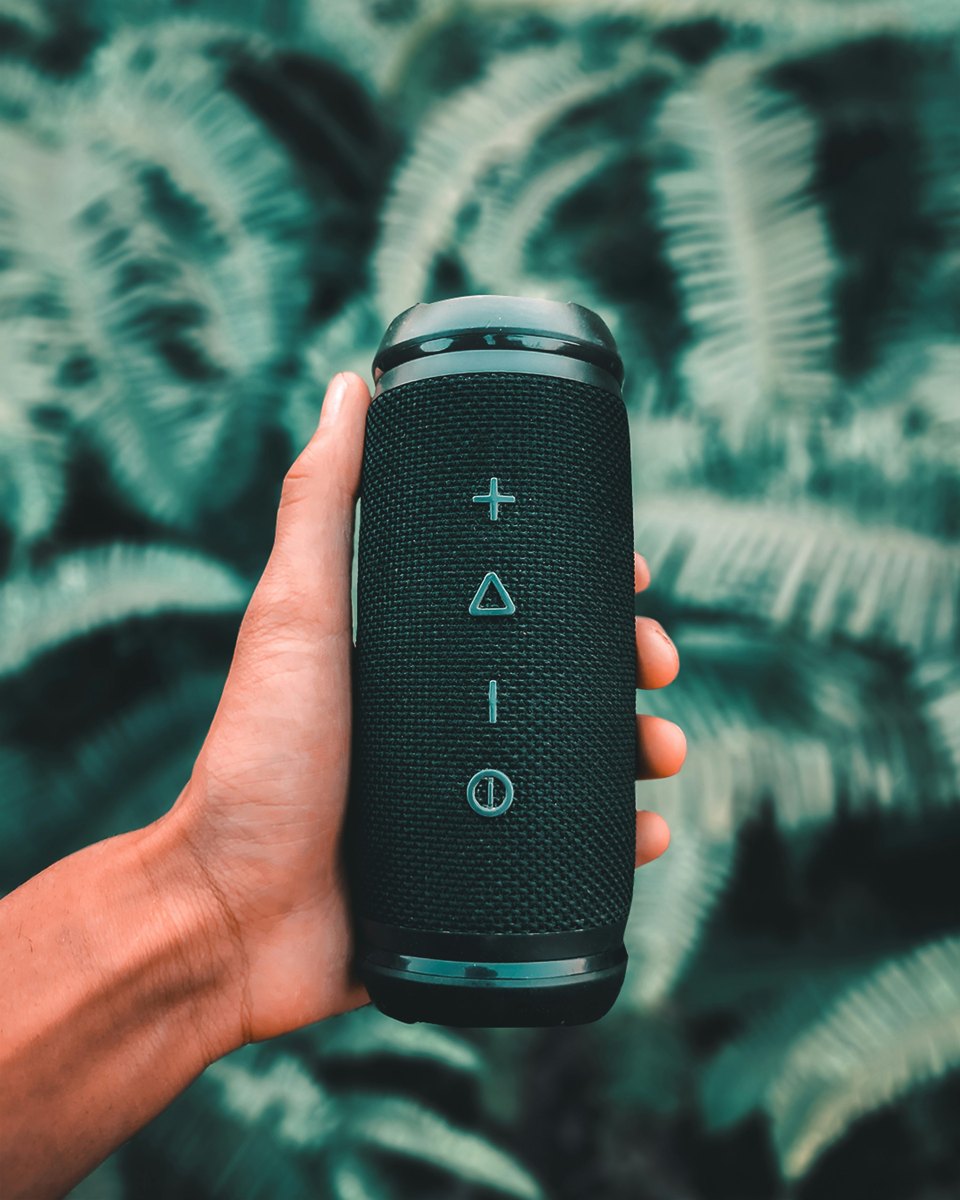
The cover photograph is a licensed contextual image of a generic portable speaker. It is not a photograph of the CMF Speaker S or CMF Speaker M.
About the photograph
Generic portable-speaker setup context. Photo by I'M ZION on Unsplash; not a CMF Speaker S or CMF Speaker M.
Source notes
Reporting record
techduopulse stores source destinations privately. Public notes remain non-clickable so every visitor journey stays on this website.
Source note: Nothing India CMF Speaker S product information
Primary source · Pairing and reset button timing, LEDs, dual connection, Low Latency, USB-C audio, app compatibility and safety qualificationsSource note: Nothing India CMF Speaker M product information
Primary source · Confirmation of Speaker M controls, dual connection, Low Latency, USB-C audio, app compatibility and safety qualificationsSource note: Nothing India CMF catalogue
Primary source · India catalogue listing for CMF Speaker S and CMF Speaker M; does not establish price or local retail stockSource note: Nothing CMF Speaker reconnection support
Primary source · Last-connected-device preference, 10-minute reconnect window, pairing re-entry and Nothing X firmware escalationSource note: Nothing CMF Speaker connection-delay support
Primary source · Brief delay during connection/channel switching and recommendation to wait for connection and manage background media appsInitial 15 October 2026 India-focused setup explainer. It verifies CMF Speaker S and CMF Speaker M on Nothing India, separates documented controls from variable behaviour, prioritises reversible troubleshooting before factory reset, and avoids unverified India pricing, app-menu paths, performance claims or hands-on testing.