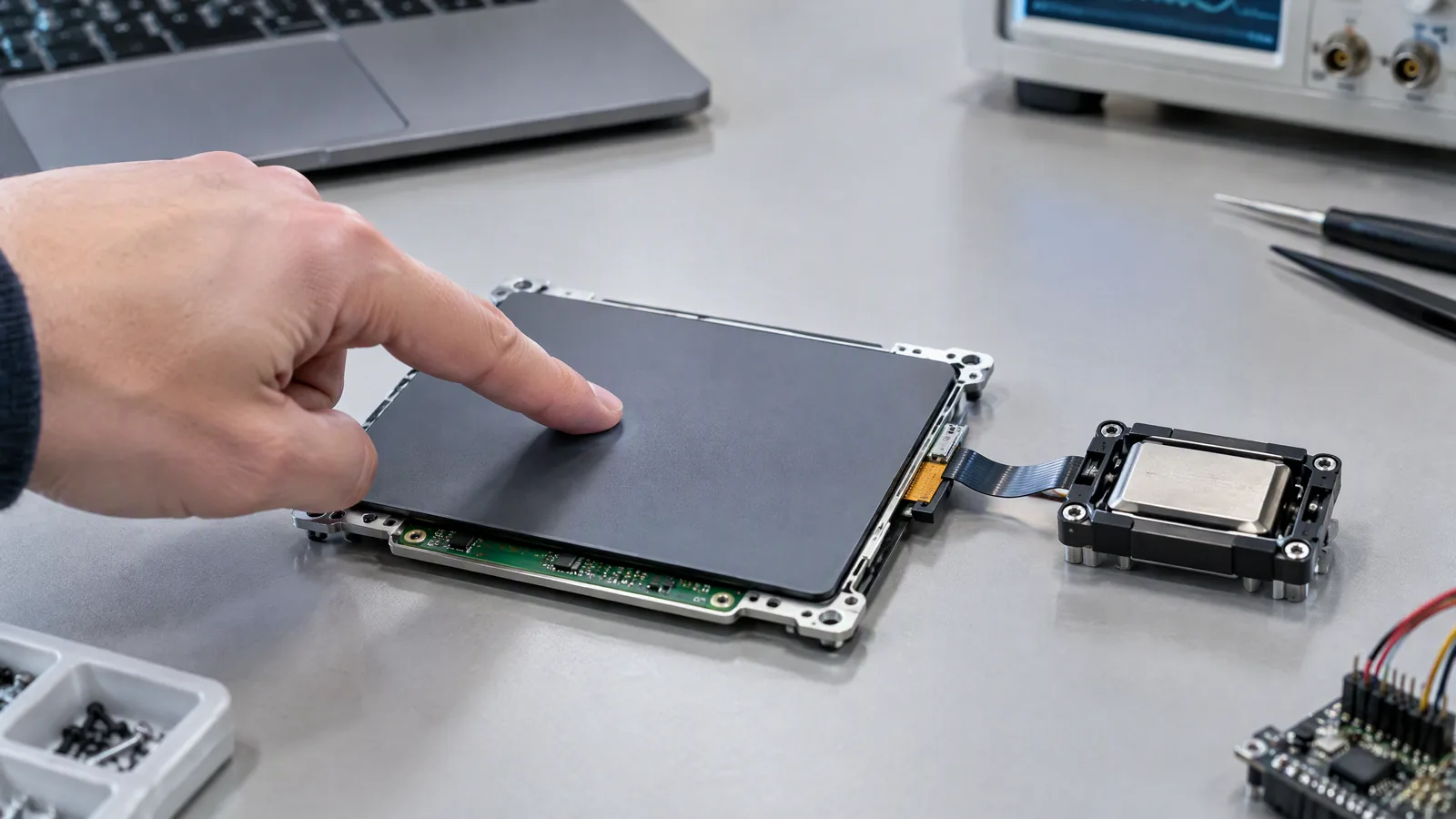
A touchpad can move the pointer perfectly yet still feel different when you press, click or scroll on it. A Force-sensing touchpad adds pressure detection beneath the touch surface, so supported laptops can respond to how firmly you press as well as where your finger is.
This article is part of the computer hardware technology guide library.
Key takeaways
A force-sensing touchpad measures applied pressure or force in addition to touch position. It is an optional layer, not a feature of every capacitive laptop touchpad.
Click-anywhere, pressure-sensitive scrolling and haptic feedback are system features built from several parts: sensing hardware, mechanical design, firmware or drivers, the operating system and application support.
A mechanical clickpad can provide clicking without force sensing, while a haptic touchpad can simulate a click without a conventional click switch. Check the exact laptop model rather than assuming from the word touchpad alone.
- Force sensing tells the computer how much pressure was applied.
- Capacitive touch sensing tells it where fingers are and how they move.
- Haptics provide a tactile response; they are not the same thing as the pressure sensor.
What is a force-sensing touchpad?
A force-sensing touchpad is a laptop pointing surface that combines ordinary touch tracking with a pressure or force-sensing layer. The touch portion identifies finger position and gestures, while the force portion detects a change in the pressure applied to the surface. The computer can then map that extra input to an action, such as a firm click, a faster scroll or a context-specific command.
This is different from a generic force sensor used in a weighing system. A laptop touchpad is designed to recognise human interaction over a broad, thin surface. It does not automatically provide a laboratory-grade force measurement, and a displayed pressure value should not be treated as a calibrated load reading.
Synaptics describes ForcePad as a buttonless capacitive TouchPad with variable pressure detection and multi-finger operation. Its product family also separates touch sensing, mechanical choices and driver features, which is why two laptops with similar-looking touchpads can behave differently. [S1] [S2]
How the sensing and clicking chain works
The useful way to understand a laptop force touchpad is as a chain rather than one single sensor. First, capacitive touch electronics track one or more fingers and their movement. A separate pressure-sensitive structure detects how the surface is being pressed. The controller interprets both signals, and firmware or the operating-system driver decides what event to send to an application.
The final click or feel comes from the touchpad’s physical and electronic design. Some designs use a conventional click mechanism. Others use a rigid surface with force sensing and an actuator that creates a haptic response. In the latter case, the sensation of a click is feedback supplied to the user; it is not proof that a mechanical switch moved underneath the finger.
The application also matters. Pressure can be useful only when the operating system and software know how to use it. Synaptics describes an API for pressure capabilities and force-enhanced gestures, while its product brief presents click-anywhere and pressure-based gesture continuation as features of a particular platform. [S1] [S2]
- Touch layer: finds finger position and multi-finger movement.
- Force layer: estimates changes in applied pressure or force.
- Controller and driver: turn raw sensing into click, scroll or gesture events.
- Mechanical or haptic layer: creates the physical click or tactile response.
- Application: decides whether a pressure-sensitive event does anything useful.
What can pressure input do on a laptop?
The most visible benefit is a click that does not depend on finding a small lower-left or lower-right button zone. A supported buttonless design can let the user press in more places on the pad. Pressure can also adjust the speed of a gesture or trigger a deeper, context-specific command, but those behaviours depend on the laptop firmware, operating system and application.
Apple’s Force Touch documentation gives a useful example of this distinction. It says sensors below the surface detect differences in applied pressure, enabling Force Click and haptic feedback. It also lists supported actions such as data detection, file preview and variable-speed media controls. Those actions are platform features, not a promise that every force-sensing touchpad supports the same shortcuts. [S3]
In practical use, pressure input can reduce repeated finger movement during long gestures and can make a click feel more consistent. It cannot compensate for poor palm rejection, an unsuitable driver, a damaged surface or an application that ignores pressure events.
Force sensing, haptics and mechanical click are not synonyms
These terms describe different jobs. Force sensing detects the strength of the press. Haptic feedback produces a tactile sensation, often through a small actuator. A mechanical click uses physical movement and a switch or hinge arrangement. A laptop may combine two or more of these approaches, or it may have only capacitive touch plus a mechanical click.
Apple explicitly notes that Force Touch trackpads provide haptic feedback, while trackpads without Force Touch use a mechanical click and do not provide haptic feedback. Synaptics likewise presents force sensing, silent click and haptic feedback as features within a configurable touchpad family. [S1] [S3]
That distinction matters when comparing laptops. A specification that says “precision touchpad” may describe gesture compatibility rather than pressure sensing. A listing that says “click anywhere” may describe a mechanical ClickPad or a haptic design. Look for the manufacturer’s exact model documentation and settings before treating any of these labels as equivalent.
| Part or feature | What it does | Is it universal? |
|---|---|---|
| Capacitive touch sensing | Tracks finger position and gestures | Common, but implementation varies |
| Force or pressure layer | Detects how firmly the surface is pressed | Optional and model-specific |
| Mechanical click | Moves a structure and actuates a switch | Used by some touchpads |
| Haptic feedback | Creates a tactile response to an event | Optional; requires suitable hardware and software |
| Driver or API support | Maps sensing into system and app actions | Depends on platform support |
Limitations and what to check before buying
A force-sensing touchpad is not automatically better for every user. Pressure features may be disabled in settings, unavailable in a particular operating system, or unsupported by an application. The feel can also vary with surface material, tuning, firmware and the haptic actuator. A manufacturer’s product family page describes capabilities for an OEM platform, not a guarantee that every laptop using a similar component exposes every function.
When comparing a laptop, check the exact model number and its manual for four separate details: whether the pad senses pressure, whether clicking is mechanical or haptic, whether click-anywhere is supported, and which gestures or applications use pressure. Also check accessibility and sensitivity settings if a firm press feels uncomfortable.
Do not confuse a pressure-sensitive touchpad with a touchpad that merely requires a firm mechanical click. Both can respond to pressing, but only the former measures pressure as an input variable. Conversely, haptic feedback alone does not prove that the pad exposes pressure data to applications.
Frequently asked questions
Is a force-sensing touchpad the same as a touchscreen?
No. Both can use capacitive sensing, but a laptop touchpad is a separate pointing surface and a force-sensing model adds pressure detection to that surface. It does not turn the laptop display into a pressure-sensitive touchscreen.
Does every laptop touchpad have a force sensor?
No. Pressure or force sensing is model-specific. Many touchpads track position and gestures without measuring press strength, and some use a mechanical click instead of a force-and-haptic design.
What does click-anywhere mean?
Click-anywhere means the touchpad is designed to accept a click over much or all of its usable surface rather than reserving only distinct left and right button zones. The underlying implementation may be mechanical or haptic, depending on the model.
Is haptic feedback the sensor in a touchpad?
No. The sensor detects touch or pressure; haptic hardware creates the tactile response. A laptop can have haptics without exposing pressure-sensitive controls, so the two features should be checked separately.
Can I use a laptop force touchpad as a precise force meter?
Not without documented calibration and a design intended for that measurement. A force-sensing touchpad is primarily a human-interface device, so its pressure response should not be treated as a general-purpose or safety-critical force measurement.
About the image
AI-generated editorial illustration; not an actual product or mission photograph.
Source notes
Reporting record
techduopulse stores source destinations privately. Public notes remain non-clickable so every visitor journey stays on this website.
Source note: Synaptics TouchPad family overview and feature descriptions
Primary source · Describes multi-finger sensing, pressure-based input, buttonless ClickPad and ForcePad designs, pressure-sensitive scrolling, click-anywhere behavior, silent click and haptic…Source note: Synaptics — ForcePad Product Brief
Context source · Describes a buttonless capacitive touchpad with variable pressure detection, per-finger force sensing, pressure-enhanced gestures, click-anywhere operation and an OEM-facing…Source note: Apple Support — How to force click and get haptic feedback on Apple trackpads
Context source · Explains that Force Touch trackpads use sensors beneath the surface to detect pressure differences, enabling Force Click and haptic feedback; distinguishes them from…Created a distinct laptop application explainer rather than duplicating the existing broad force-sensor and touch-sensor guides. Added component-versus-feature distinctions, model-specific limitations, source-backed pressure and haptic claims, and beginner-friendly FAQs.