When smart TV apps are not working, find out whether the fault affects one app or the TV. Open a second app, then try the affected service on another device. Restart the TV, check the connection and install official updates before resetting anything.
This article is part of the software engineering technologies guide library.
Use this quick diagnosis before changing settings
Start with small checks. They separate a temporary app problem from a Wi-Fi, account or TV problem, and can prevent an unnecessary reset. A Wi-Fi symbol only shows that the TV joined a network; it does not prove streaming works.
If one app fails while others play, focus on that app’s sign-in, profile, availability and official help. If several apps fail, begin with a TV restart, network check and TV-software update. If the same service fails on the TV and another device, investigate the service or account before the television.
- Open one other streaming app. Note whether it launches and plays a short video.
- Try the affected service on a phone, tablet or computer connected to the same home Wi-Fi, if you have one.
- Fully restart the TV rather than only putting it into standby, then open the app again.
- Write down the exact error message, the TV brand and model, and whether the problem is launch, sign-in, buffering or playback.
| What you find | Best next check | What not to assume |
|---|---|---|
| Only one app fails | Check its sign-in or service help | The TV or Wi-Fi is definitely broken |
| Several apps fail | Restart, then check Wi-Fi and TV updates | Reinstalling one app will fix everything |
| It works on a phone, not the TV | Check TV compatibility and updates | The subscription is inactive |
| It fails on more than one device | Look for an official service or account prompt | A factory reset is the first move |
Check whether the app is installed, supported and available for your TV
An app missing from the TV store is not always a download error. It may not support that TV model or operating system, may not be offered for the selected service country, or may need more free storage. LG India advises checking the network, service-country setting, storage and TV specifications before treating a missing app as a fault.
Use the TV’s own app store and the streaming service’s official supported-device information. Avoid unofficial app stores and videos that tell you to change hidden developer settings. Files for another platform or region can fail, lose updates or weaken normal support.
If the store lists the app but installation fails, confirm that the TV is online, has room and is not waiting for an app agreement. Do not change a country setting just to chase a catalogue unless you understand the effect on other apps and services.
- Use the exact TV model and software version shown in Settings when checking support.
- Check that the TV’s service country matches where you normally use it.
- Remove only an app you no longer need if storage is low; keep its login details first.
- If an app is no longer listed for that model, ask the app provider or TV maker about support rather than forcing an installation.
Fix apps that will not open, freeze or close
A full restart is the sensible first repair for an app that hangs or closes. Samsung India describes a soft reset on its TVs as a complete power-off and restart, not standby; its documented options include holding the remote Power button until the set restarts or disconnecting power for 30 seconds. This is a Samsung example, not a universal path.
Next, check for an official TV software update and an update for the app in the TV store. Google’s Google TV guide also places connection and system-update checks before restart and app-data clearing. Follow the wording displayed on your own TV, because labels differ by brand and version.
Only then consider clearing data or reinstalling the app. These actions can sign you out and remove preferences or local data. Samsung India says app deletion removes its data and that a reinstall requires another sign-in, so make sure your normal account recovery method is available first.
- Close the app, fully restart the TV and test it again.
- Install official TV software and app updates, then retest.
- If the fault is still limited to one app, use that TV platform’s supported clear-data or reinstall option.
- Sign in again only through the app’s normal screen. Stop if you cannot verify the account or the prompt looks unfamiliar.
If the app opens but video buffers, shows an error or will not play
Playback trouble has a different pattern from an app that will not open. Play something short in another app. If both struggle, investigate the connection or TV. If only one service will not play, read its message, account state and official help before repeatedly rebooting the router.
For a wider failure, restart the TV and then the home network if practical. Let each device finish starting before testing. Use a simple test close to the router where possible, or the TV’s normal wired connection if it already has one. Do not buy equipment or change DNS settings for a one-off error.
Google’s Google TV help also tells users to check which profile is active. On a shared TV, confirm the selected profile and linked service account rather than guessing a password or creating another subscription.
- Test another app before changing the router.
- Check whether the TV is connected to the intended home network, not a guest or phone hotspot by mistake.
- Pause large downloads or cloud backups on the same connection if they are clearly competing for bandwidth.
- Read the on-screen error exactly; an account, network and content-rights error can look similar at first glance.
Check account, sign-in and device prompts without risking access
A service can be working while the account on the TV needs attention. Clues include a request to sign in again, a profile-selection screen or a household/device prompt. Netflix’s TV help lists device restart, home-network restart and signing out as basic service-specific steps. Rules differ between services and plans, so use the help for the app you use.
Sign out only when the app or official help tells you to, and keep the recovery method ready. Never share an OTP, password, recovery code, card number or remote-control access with someone who contacts you after an error appears.
If a household or device message persists, stop changing TV settings. Read the service’s official account guidance or contact its support. The TV maker cannot usually change a streaming provider’s profile, plan, billing or account rules.
Know what each repair step can remove
Use the least disruptive option that fits the fault. Clearing data, reinstalling an app, resetting an app hub and factory-resetting a TV are not interchangeable. A reset can repair a deeper configuration problem, but apps may need downloading again and accounts may need signing in again.
Google says a factory reset erases Google TV data and recommends other steps first. LG India warns that a TV reset erases account settings and installed apps. Samsung India says a Smart Hub reset removes account information, linked service accounts, agreements and apps. Reset belongs near the end.
| Action | Use it when | Prepare first |
|---|---|---|
| Full TV restart | An app has frozen or several apps are behaving oddly | Nothing beyond a few minutes to restart |
| Update TV software or an app | A supported update is offered | Stable connection and enough time for installation |
| Clear app data or reinstall | One app still fails after restart and updates | Account sign-in and any normal recovery method |
| Hub or factory reset | Official support directs you there after earlier checks fail | A list of apps, accounts, network details and time to set up again |
When to stop troubleshooting and contact the right support team
Contact the streaming service when only its app fails, an account or plan message appears, or the same failure occurs on more than one device. Contact the TV maker when several apps fail after a full restart and current updates, the TV cannot stay connected, or the TV’s app store and settings are affected.
Collect the exact TV model, software version, app name, time and full error message. Do not post account numbers, passwords, recovery codes or a full serial number publicly.
If the TV repeatedly restarts, shows physical damage, overheats, loses power or cannot complete an official update, stop experimenting with resets and use the manufacturer’s authorised support route.
Smart TV apps not working: FAQs
These answers reflect official help consulted on 15 October 2026. Choices on your television may differ by brand, model, software version and region.
Why are apps not working on my smart TV?
The failure can be temporary app data, an outdated TV or app version, a network problem, low storage, unsupported app availability, or a sign-in or profile issue. Testing a second app first helps separate a single-service problem from a TV-wide one.
What should I do if a smart TV app opens but will not play video?
Play a short item in another app, fully restart the TV, and check the connection and updates. If other apps play normally, read the affected service’s on-screen message and official help before changing the router or resetting the TV.
Can I reinstall a streaming app on a smart TV?
Usually, if the TV’s official app store still lists the app and the TV model supports it. Keep your sign-in details first: Samsung India says deleting an app removes its data and reinstalling requires another sign-in.
Why can’t I find an app in my TV’s app store?
Check the internet connection, the TV’s selected service country, free storage and whether the exact TV model meets the app’s requirements. LG India says app installation can be limited on older models, so an absent listing is not always a store malfunction.
Should I factory-reset my TV when apps are not working?
Not as the first fix. Google warns that a factory reset erases device data, and LG India says a reset removes account settings and installed apps. Use it only after safer checks fail or the TV maker’s official support directs you to it.
About the photograph
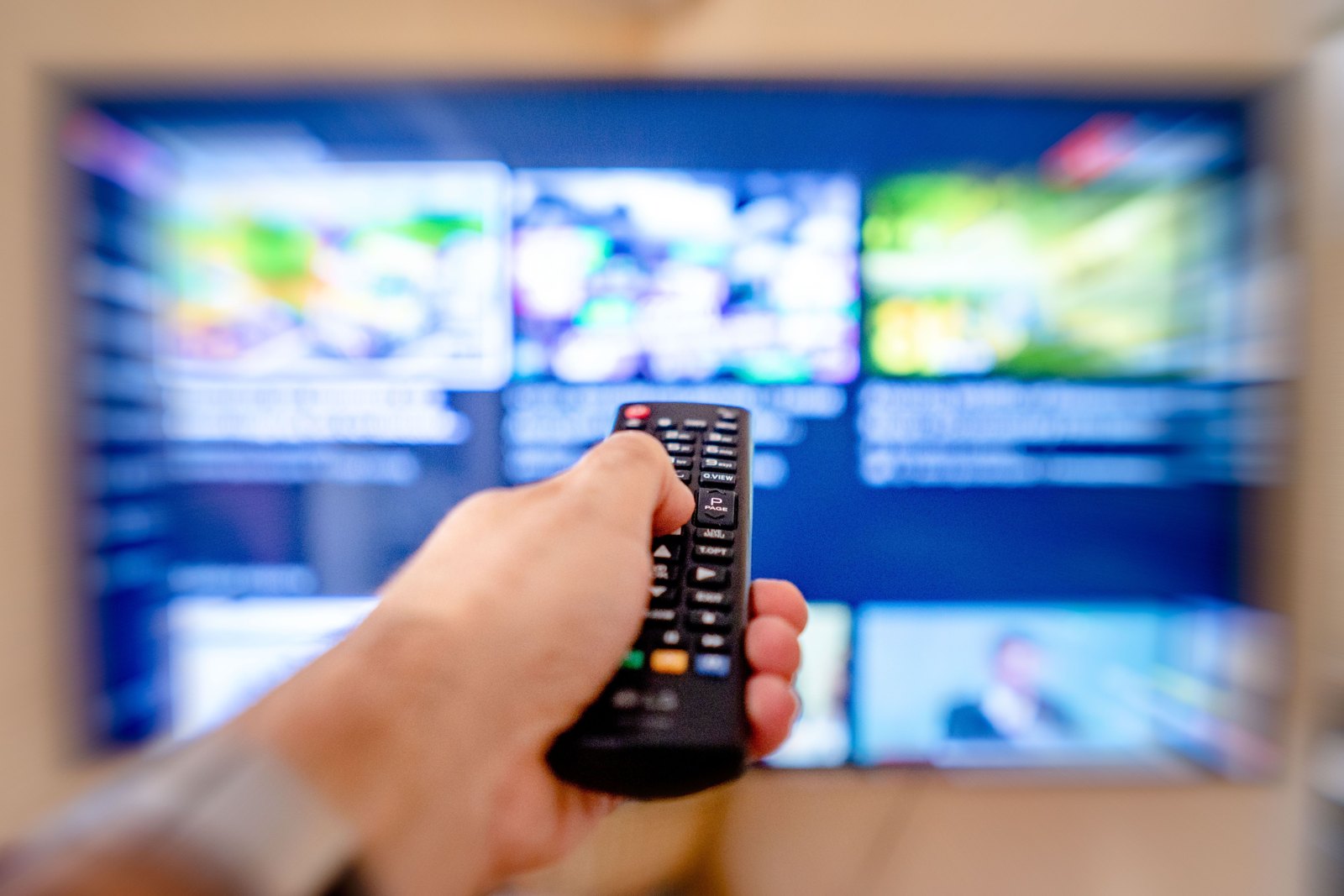
Context photo of a hand using a TV remote; it does not depict a specific TV model, streaming app or test result.
Source notes
Reporting record
techduopulse stores source destinations privately. Public notes remain non-clickable so every visitor journey stays on this website.
Source note: Samsung India TV app troubleshooting
Primary source · Soft reset, software update, app reinstallation, sign-in and Smart Hub reset data implicationsSource note: Google TV troubleshooting guidance
Primary source · Wi-Fi, system update, restart, profile, app data and factory-reset sequenceSource note: LG India app installation and reset guidance
Primary source · Network, services-country, storage, model support, installation and reset implicationsSource note: Netflix TV and streaming-player basic troubleshooting
Primary source · Service-specific restart, home-network restart and sign-out troubleshootingInitial 15 October 2026 India-focused explainer. Uses a reversible-first troubleshooting path; distinguishes one-app, network, account and TV-wide faults; qualifies menu paths by platform and version; and explains the sign-out and data-loss consequences of reinstalling, clearing data and resetting before readers take those actions.