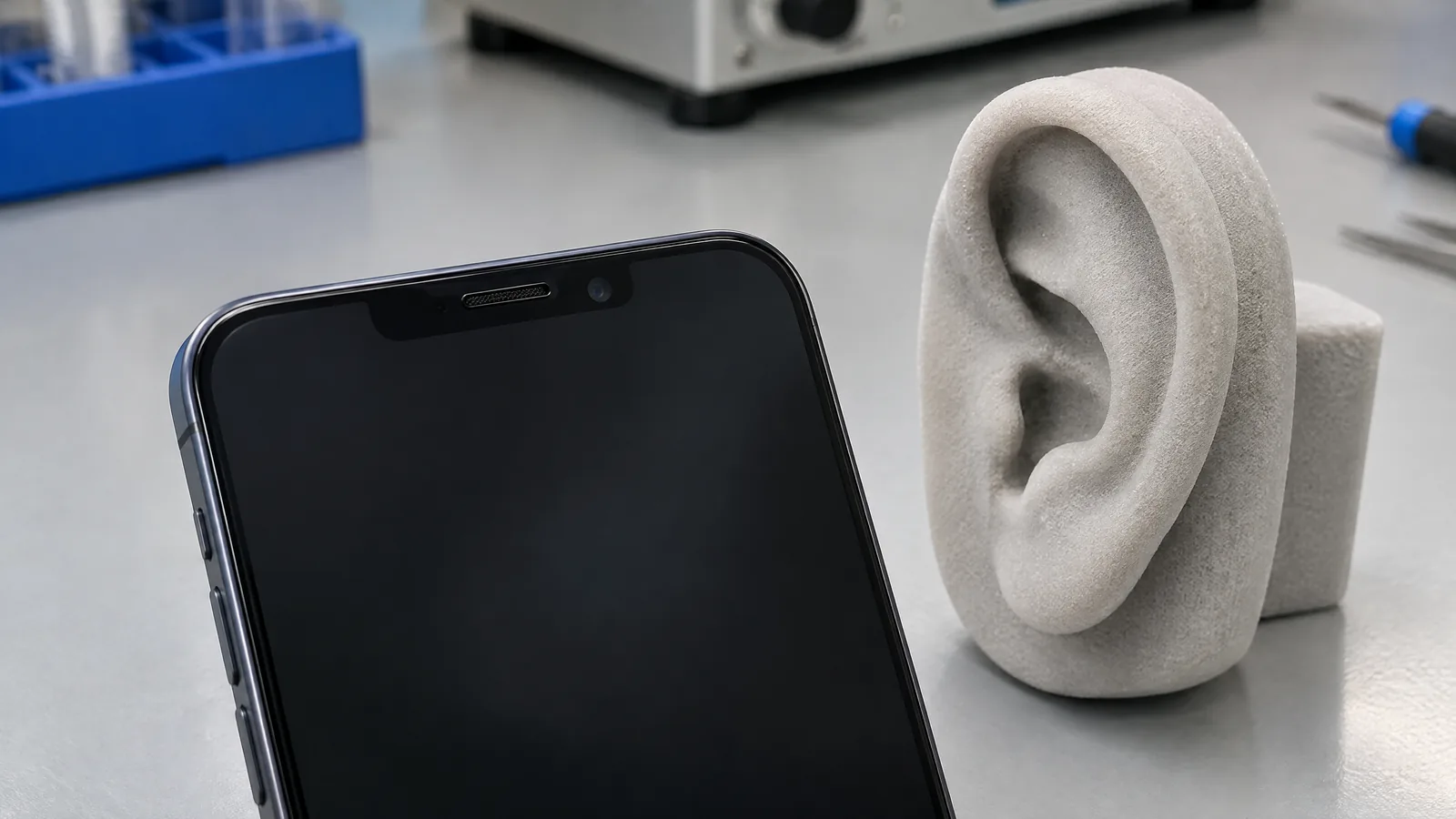
You lift your phone to your ear and the display goes dark, so your cheek does not press buttons or end the call by mistake. The phone proximity sensor measures how close an object is to the device face, then the call software can switch off the display and touch input when the handset is near your ear.
This article is part of the computer hardware technology guide library.
What does a phone proximity sensor measure?
A phone proximity sensor detects whether an object is close to the front of the handset. Android identifies this as the hardware-based `TYPE_PROXIMITY` sensor and describes its common use as determining whether a handset is being held up to a person's ear during a call. Depending on the phone and sensor, the reading may be a distance in centimetres or only a near/far result.
This is not the same as a camera that recognises a face, and it is not a precision 3D map of the space around the phone. It provides a signal about closeness. The phone's calling software decides what to do with that signal, such as blanking the display while the call remains active. Android also notes that sensor availability and capabilities vary between devices.
- The physical sensor responds to an object close to the phone's front surface.
- Some models expose an approximate centimetre value; others report only near or far.
- The call interface uses the signal to manage the screen and touch behaviour.
Why does the phone screen turn off during a call?
When the phone is close to your ear, leaving the display and touch layer active could allow accidental taps from your cheek or ear. The proximity signal gives the operating system a reason to turn the display off and suppress ordinary touch interaction for that part of the call. Move the phone away and the screen can wake again, although the exact timing and interface behaviour depend on the phone's software.
The sensor does not end the call, improve reception or measure the quality of your voice. Its job in this situation is near-object detection. The earpiece, microphone, call application and display controller are separate parts that work with the phone's software; do not describe all of them as one sensor.
- Near your ear: the display may go dark to reduce accidental touches.
- Away from your face: the display may return so you can use call controls.
- On speakerphone or in another call mode: the phone may apply different interface rules.
What can affect a phone proximity sensor reading?
The sensor needs a clear and predictable view of the nearby object, but its placement differs by phone. A thick or poorly fitted case, a screen protector that covers the sensor area, dust, grease, or an object held at an unusual angle can change what the sensor detects. These are practical possibilities, not proof that a particular accessory is defective.
Some models place the proximity sensor underneath the screen. Android's position-sensor documentation notes that an enabled under-display sensor can appear as a blinking dot while the screen is on. That visual behaviour can be normal for the design and should not automatically be interpreted as a damaged pixel or a camera indicator.
Because phone designs vary, do not apply a universal sensor location, range or calibration instruction. A model's support documentation is the right place to confirm the sensor area and any diagnostic steps.
- Check whether a case edge or protector overlaps the top/front sensor area.
- Clean the screen and the upper front area gently with a suitable dry, soft cloth.
- Try a call without the accessory only as a simple comparison, not as a repair diagnosis.
- If the behaviour started after a drop, screen replacement or moisture exposure, record that context for authorised support.
Phone proximity sensor not working: safe checks first
If the screen stays black after you move the phone away, or wakes while it is against your ear, begin with reversible checks. End the call if possible, remove any case or protector that may cover the sensor area, clean the front surface, and restart the phone. Then make a short test call and observe whether the same behaviour appears with the phone held normally.
Do not poke the earpiece area, insert a pin, open the phone, or install a random calibration application. The sensor may be an integrated, model-specific component, and an app cannot safely repair a blocked opening, damaged display assembly or incorrect replacement part. Use the handset maker's diagnostic or support route if the issue remains.
A black screen during a call is not automatically a sensor fault. It can also be a normal near-ear response, a call-interface setting, a software issue or a physical problem caused by an accessory or repair. Note whether the issue affects every call, whether the screen returns when the phone is moved away, and whether it began after a change to the handset.
- Remove the case temporarily and check that the protector is aligned.
- Clean the front sensor area without liquid entering openings.
- Restart the phone and test one ordinary call.
- Check the manufacturer's support instructions for the exact model.
- Seek authorised service when the issue persists or follows physical damage.
Key takeaways
The phone proximity sensor detects closeness near the device face, commonly to tell the call interface that the handset is near your ear. It may provide a distance value or only a near/far state. The display turning off is a software response to that signal, not the sensor doing the work of the screen, earpiece or microphone.
Readings can vary with model-specific placement, under-display designs, cases, protectors, dirt and how the phone is held. Start with simple reversible checks and use the exact manufacturer's guidance before considering service.
Frequently asked questions
What is a proximity sensor in a mobile phone?
It is a physical sensor that detects how close an object is to the phone's front surface. During a call, the phone can use its near-object signal to turn off the display and reduce accidental touch input.
Why does my phone screen turn off when I call someone?
The phone normally turns the display off when the proximity sensor detects that the handset is near your ear. This helps prevent cheek or ear touches from activating call controls.
Does every phone proximity sensor measure exact distance?
No. Android documents that some proximity sensors return an absolute distance in centimetres while others provide only binary near and far values. The capability depends on the handset's component and software.
Why is my screen black during a call even after I move the phone away?
An accessory covering the sensor area, dirt, unusual alignment, a software problem or physical damage can contribute. Remove the case temporarily, check the protector and clean the front gently, then restart and test. If it continues, consult the exact model's authorised support route.
Is a blinking dot under my phone screen always a fault?
Not necessarily. Android notes that some models place the proximity sensor under the screen, and an enabled sensor can appear as a blinking dot while the display is on. The model's documentation is the best way to identify normal behaviour.
About the image
AI-generated editorial illustration; not an actual product or mission photograph.
Source notes
Reporting record
techduopulse stores source destinations privately. Public notes remain non-clickable so every visitor journey stays on this website.
Source note: Android Developers Sensors overview
Primary source · Defines TYPE_PROXIMITY as a hardware sensor measuring an object's proximity in centimetres relative to the device display, lists phone position during a call as a common use,…Source note: Android Developers position sensors guidance
Primary source · Explains that the proximity sensor determines how close a device face is to an object, is commonly used when a handset is near a person's head during a call, may return…Created a distinct phone-call application article rather than duplicating the existing broad proximity-sensor guide. Added reader troubleshooting context, model-specific and optional-component cautions, near/far limitations, safe reversible checks, and source-backed FAQs.