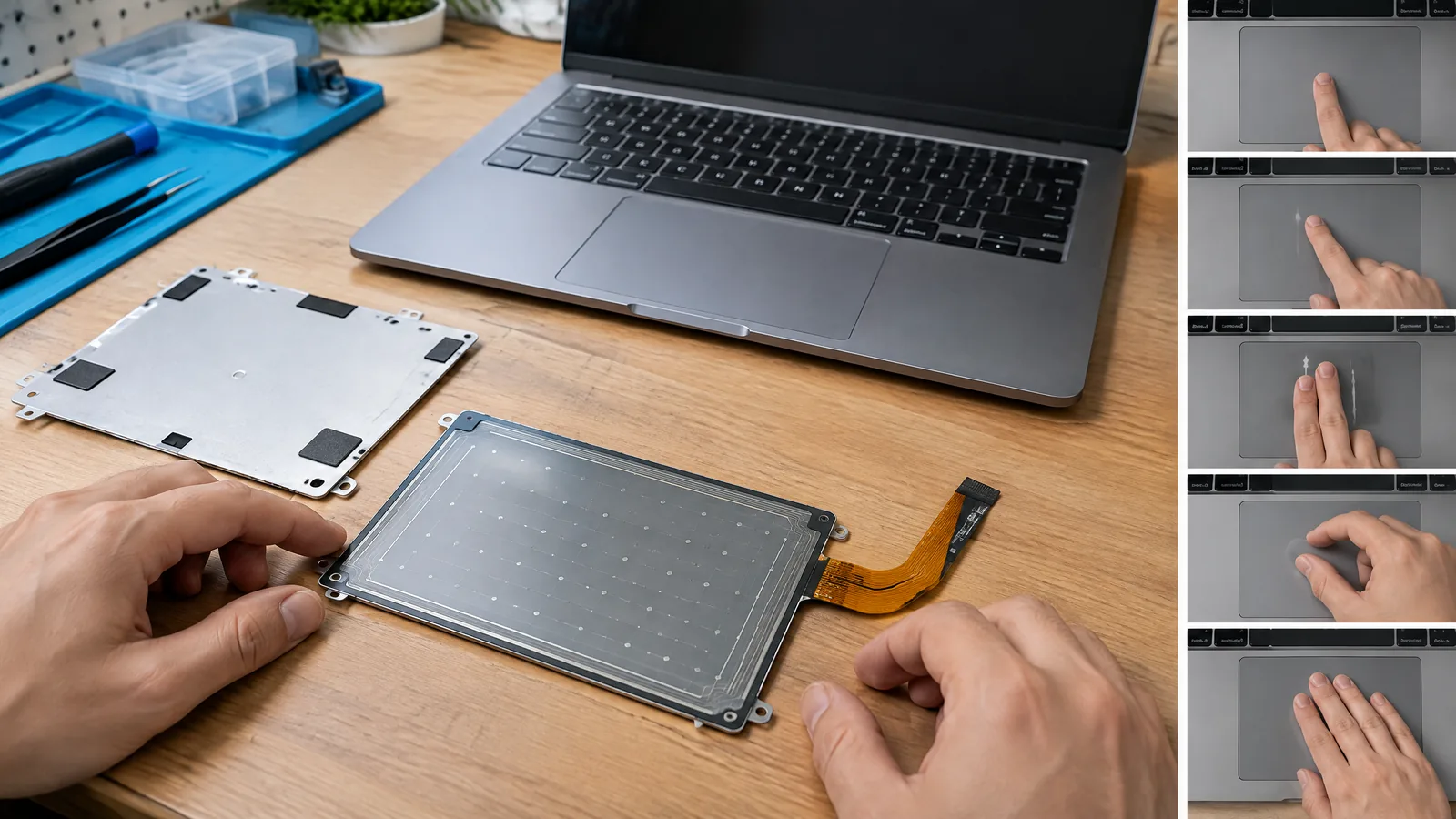
A laptop touchpad capacitive sensor matters when the pointer jumps, a two-finger scroll fails, or your palm selects text while you type. It measures changes in an electrode field under the pad, then a controller and software convert those signals into pointing, taps, gestures and contact filtering.
This article is part of the computer hardware technology guide library.
Key takeaways
The touchpad is not just a clickable plastic panel. It is a sensing surface working with a controller, firmware or driver, and the operating system.
- Capacitive electrodes detect a change caused by a finger; they do not directly understand words such as scroll or pinch.
- The controller estimates contact position and movement, while the driver interprets one- and multi-finger patterns.
- Palm rejection is a contact-classification feature that depends on sensing data, firmware, driver rules and laptop design.
- Force sensing, haptic feedback and fingerprint reading are optional or model-specific components, not properties of every touchpad.
What does a capacitive touchpad sensor measure?
Under a laptop touchpad is a pattern of conductive electrodes. A finger changes the electrical coupling around that pattern through the pad's insulating surface. The electronics repeatedly scan the change and estimate where contact is happening. Texas Instruments describes capacitive sensing as measuring a change at a conductive sensor element; the exact electrode layout and signal-processing method vary by implementation.
This is different from a mechanical mouse switch. The sensing layer can report a moving contact before software decides that the movement means pointer motion. A click can involve a physical click mechanism, a buttonless ClickPad design, or another model-specific arrangement. The word touchpad therefore describes a complete input module, not one universal sensor construction.
How a laptop touchpad turns a finger into a pointer
A useful signal chain is: finger contact → capacitance change → controller scan → contact coordinates and motion → driver interpretation → operating-system action. The controller handles the electrical measurements and reports contact data. The driver can then apply pointer acceleration, tap rules, scrolling behaviour, gesture recognition and contact filtering.
A single contact can move the pointer or become a tap. Two contacts can provide a two-finger scroll or pinch gesture when that laptop's hardware and software support it. Synaptics describes touchpad drivers with features such as two-finger scrolling and PinchZoom, but those features are not guaranteed on every laptop or operating-system configuration.
Some designs use self-capacitance, in which an electrode is measured relative to ground. Others use mutual capacitance between transmit and receive electrodes. TI explains that a finger typically adds capacitance in a self-capacitance measurement and disturbs or reduces coupling in a mutual-capacitance measurement. These are engineering descriptions, not settings a laptop owner normally selects.
| Part of the system | What it does | What can vary |
|---|---|---|
| Sensing electrodes and surface | Detects electrical changes near the pad | Electrode pattern, cover material and shielding |
| Controller | Scans signals and estimates contacts | Sampling, filtering and reporting behaviour |
| Firmware or driver | Classifies taps, motion and gestures | Supported gestures, thresholds and palm rules |
| Mechanical input | Provides click, force or haptic feedback where fitted | Buttonless, hinged, force-sensing or haptic design |
Why palm rejection is not a separate magic sensor
Palm rejection aims to stop an unintended hand or wrist contact from becoming a pointer movement or click while you type. The system can use contact size, position, movement, timing and other signal characteristics to classify likely intentional finger input. The result is a software-and-firmware decision built on sensor data, not proof that the surface can identify a palm with perfect certainty.
Synaptics calls this kind of accidental-contact mitigation TypeGuard and describes it as part of its touchpad input solutions. A different laptop may use another controller, driver or tuning approach. That is why palm rejection can feel different between two machines even when both have smooth capacitive touch surfaces.
Electrical and mechanical conditions also matter. TI notes that parasitic capacitance can make a touch-related change harder to measure, while electrode spacing, nearby ground structures and overlay geometry affect the electric field. Microchip's design guidance likewise treats cover effects, shielding, self-capacitance and mutual capacitance as part of the complete design.
Optional features that should not be confused with the sensor
A normal capacitive touchpad can support pointing and contact gestures without including every feature marketed around premium notebooks. Pressure or force sensing is a separate capability: Synaptics describes ForcePad as enabling pressure-sensitive interactions, but it is a model-specific option. Haptic feedback is also a particular hardware implementation, not an automatic result of capacitive sensing.
An integrated fingerprint reader is another separate component. Synaptics presents SecurePad as combining a fingerprint sensor with the touchpad area. Its presence cannot be inferred from the fact that a laptop has a capacitive touchpad. Similarly, a touchscreen above the keyboard is a separate display input surface, even though both systems may use capacitive principles.
Common limits and sensible troubleshooting boundaries
A touchpad does not have one universal sensitivity, accuracy or gesture guarantee. Surface contamination, a changed driver, electrical noise, grounding, cover thickness and the particular controller can all affect behaviour. A missed gesture may therefore come from software settings or driver support rather than a failed sensing layer; an accidental click does not by itself identify the fault.
For ordinary user troubleshooting, first compare the behaviour with the laptop's current touchpad settings and supported driver. Do not assume an old guide's gesture list applies to a newer model. If the surface is physically damaged, repeatedly produces input without contact, or remains unusable after the manufacturer's supported software checks, use the laptop maker's service route rather than opening the input assembly.
Frequently asked questions
Is every laptop touchpad capacitive?
Conventional laptop touchpads commonly use capacitive sensing, but the exact electrode, controller and mechanical design can differ. The laptop's documentation is the reliable source for a particular model; do not infer force sensing, haptics or fingerprint reading from the word touchpad alone.
How does a laptop touchpad detect a finger?
Its conductive sensing elements detect a change in capacitance or electrode coupling near the surface. A controller estimates contact position and movement, and the driver turns that data into pointer motion, taps or supported gestures.
Why does palm rejection sometimes fail?
Palm rejection classifies likely accidental contact using sensor data and software rules. Contact size, location, timing, surface conditions, electrical noise and driver tuning can affect that classification, so it is not perfect on every laptop.
Does a capacitive touchpad measure pressure?
Basic capacitive sensing measures electrical changes caused by contact. Pressure or force sensing may be added as a separate model-specific capability, but it is not present in every touchpad.
Is a touchpad the same as a laptop touchscreen?
No. They are separate input systems. A touchpad controls the pointer from the laptop base, while a touchscreen combines a display with a touch-sensing layer. They can share capacitive principles without being the same component.
About the image
AI-generated editorial illustration; not an actual product or mission photograph.
Source notes
Reporting record
techduopulse stores source destinations privately. Public notes remain non-clickable so every visitor journey stays on this website.
Source note: Library of Congress touchscreen explanation
Primary source · Sensor/controller/software separation and capacitive touch backgroundSource note: Microchip capacitive touch sensor design guide
Primary source · Cover effects, shielding, sensor materials and self-/mutual-capacitance designSource note: Synaptics TouchPad family overview and feature descriptions
Primary source · Touchpad sensing, drivers, gestures, palm rejection, force sensing and optional fingerprint integrationSource note: Texas Instruments capacitive sensing technical guide
Primary source · Self-capacitance, mutual capacitance, parasitics, overlays and multi-touch matricesInitial 15 October 2026 laptop application article. Distinguishes the capacitive sensing surface from controller, driver, mechanical click hardware and optional force, haptic and fingerprint components; adds laptop-specific gesture and palm-rejection context without duplicating the broad touch-sensor guide.