If your laptop has a normal webcam but Windows Hello face sign-in is missing, the camera may be the reason. A near-infrared camera for Windows Hello captures IR facial information that the Windows Hello biometric system uses for face matching, so an RGB webcam alone is not proof that face sign-in will work.
This article is part of the computer hardware technology guide library.
Key takeaways
- A Windows Hello face setup needs compatible near-infrared imaging hardware, not just a visible-light webcam.
- The camera captures IR information; Windows performs the face detection, representation and comparison steps.
- IR can provide a more consistent image in varied lighting, but glasses, sunlight, angle, drivers and model-specific support can still affect sign-in.
- Check the exact laptop specification and Windows Settings rather than assuming that a webcam or an IR label guarantees compatibility.
- An external camera is a separate option with its own driver, security and policy considerations.
What does a laptop IR camera for Windows Hello measure?
A laptop IR camera for Windows Hello is a near-infrared imaging system. It captures a facial view in a wavelength range different from ordinary colour photography. The camera is the physical sensing component; it does not independently decide who you are.
Microsoft describes Windows Hello face authentication as using a camera specially configured for near-IR imaging. Windows Hello then detects a face and facial landmarks, checks whether enough of the face is oriented toward the device, creates a mathematical representation and compares that representation with the enrolled profile on the device. In other words, the sensor supplies image data while the operating system and biometric components handle matching.
This distinction matters when shopping for a laptop. A specification that only says ‘HD webcam’ normally describes visible-light video for meetings. It does not, by itself, establish that the camera has the near-IR hardware or the Windows Hello compatibility needed for face sign-in.
Why an ordinary webcam is not enough
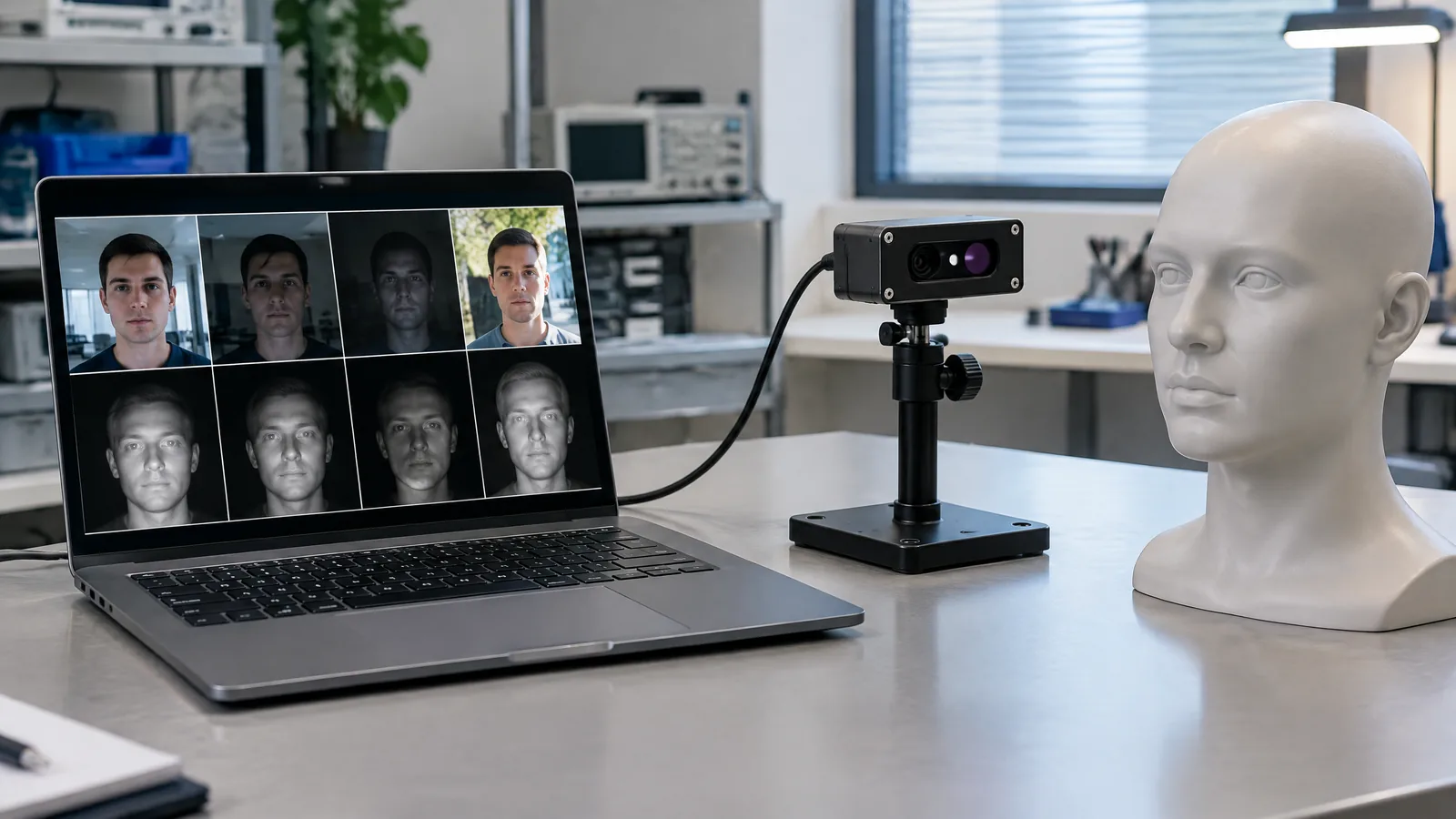
An RGB webcam records visible colours. Windows Hello face authentication is designed around a compatible near-IR sensor so that the system can work with a more consistent facial image across lighting conditions. Microsoft’s documentation shows low-light and side-light examples where near-IR is used instead of relying only on the visible-light camera.
Near-IR is not a promise that sign-in will work in every room. Strong ambient near-IR light, such as bright sunshine, can change the capture conditions. Microsoft notes that a user may need additional enrollment in some environments, including when moving into high ambient near-IR light. Angle, distance, glasses and changes in facial appearance can also affect whether the enrolled representation matches.
IR also supports resistance to some simple presentation attacks because ordinary photographs and LCD screens do not show the same IR information. That is one part of a biometric design, not a guarantee that every camera labelled ‘IR’ provides identical protection.
How to check Windows Hello camera compatibility on a laptop
Start with the exact model’s technical specification. Look for explicit wording such as Windows Hello face authentication, IR camera, or a manufacturer statement that the camera supports Windows Hello. Do not infer support from a privacy shutter, a camera resolution number or a generic webcam listing.
Then open Windows Settings and check Accounts > Sign-in options. If Windows Hello Face is offered for setup, follow the enrollment flow and read any hardware or driver message. If it is unavailable, update Windows and the manufacturer’s camera or system drivers through the laptop maker’s supported route, then check again. A missing option can still reflect model support, firmware, policy or driver state; it is not sensible to diagnose it from the camera’s appearance alone.
For a used or refurbished laptop, confirm the original configuration. A replacement display, camera module or motherboard may not have the same biometric hardware as the launch specification. Ask for the full model number and verify the manufacturer’s configuration before treating a listing as Windows Hello-ready.
- Exact model and configuration, not only the product family name
- An explicit IR or Windows Hello face specification
- Windows Hello Face appearing in Sign-in options
- Current supported Windows and manufacturer drivers
- Whether an administrator policy disables biometric or external-camera use
Can an external IR camera add Windows Hello face sign-in?
Compatible external Hello cameras are a separate hardware category. A USB webcam that produces normal video is not automatically a Windows Hello camera. The device needs suitable near-IR imaging, supported drivers and compatibility with the Windows biometric path.
Microsoft documents external Hello cameras and also provides an optional policy setting that can forbid their use. That means compatibility is not only about plugging in a camera. A work or school computer may have security policy restrictions, and a particular Windows setup may require updates or supported drivers. Check the camera maker’s compatibility statement and the computer’s policy before buying one.
Treat an external camera as a convenience choice, not as a universal workaround. If the laptop has no compatible internal sensor, a supported external device may help, but the final result depends on the exact camera, Windows version, drivers and security configuration.
Limitations and privacy considerations
A near-IR camera improves the sensing input for face authentication; it does not remove the normal limits of biometric matching. A face may be rejected when the camera view is blocked, the user is poorly positioned, the lighting changes sharply or the enrolled appearance no longer represents the user. Keep a PIN or another supported sign-in method available rather than treating face matching as the only route into the laptop.
Microsoft says Windows Hello enrollment stores representations on the physical device and does not store an actual face image for this process. The same documentation says enrollment data is not sent to websites or applications for authentication. Readers should still review their organisation’s policies, keep Windows updated and understand whether a work administrator controls biometric settings.
Microsoft publishes performance measures for its Windows 11 algorithm, including false-accept and true-accept targets. Those figures describe the documented system and test framing, not a guarantee for every laptop, camera, user or lighting condition. A camera module alone cannot establish a biometric security level.
Frequently asked questions
Is an IR camera the same as a laptop webcam?
Not exactly. A laptop can have an RGB webcam for visible-light video and a separate or combined near-IR imaging path for Windows Hello. A webcam label alone does not prove face sign-in support.
Does every laptop with Windows Hello have an IR camera?
Windows Hello is a family of sign-in methods. Windows Hello Face requires compatible near-IR camera hardware, while other methods such as a fingerprint reader use different hardware. Check the exact sign-in options and model specification.
Will a normal USB webcam enable Windows Hello Face?
No. A normal USB webcam is not automatically compatible. An external option must be specifically designed and supported for Windows Hello face authentication, with suitable IR hardware, drivers and policy support.
Does an IR camera work in the dark?
Near-IR can help Windows Hello obtain a more consistent facial image in varied visible-light conditions, but it is not a guarantee for every dark scene. Camera hardware, ambient IR, positioning and software support still affect sign-in.
Is a laptop IR camera a thermal sensor?
No. The Windows Hello component is a near-IR imaging system for biometric input. It should not be treated as a thermal camera or as a temperature-measurement instrument.
About the image
AI-generated editorial illustration; not an actual product or mission photograph.
Source notes
Reporting record
techduopulse stores source destinations privately. Public notes remain non-clickable so every visitor journey stays on this website.
Source note: Microsoft Windows Hello face authentication hardware and processing guidance
Primary source · Near-IR camera requirement, authentication and re-authentication, processing stages, varied-light behaviour, enrollment, external-camera considerationsSource note: Microsoft Windows Hello biometric requirements for facial feature recognition
Primary source · IR-camera biometric hardware context and facial FAR/TAR requirement definitionsNew application page distinct from the existing broad IR sensor guide. Focuses on laptop selection, Windows Hello near-IR hardware, RGB webcam limits, external compatible cameras, setup checks, privacy and practical limitations; avoids universal performance claims and unsafe or medical advice.