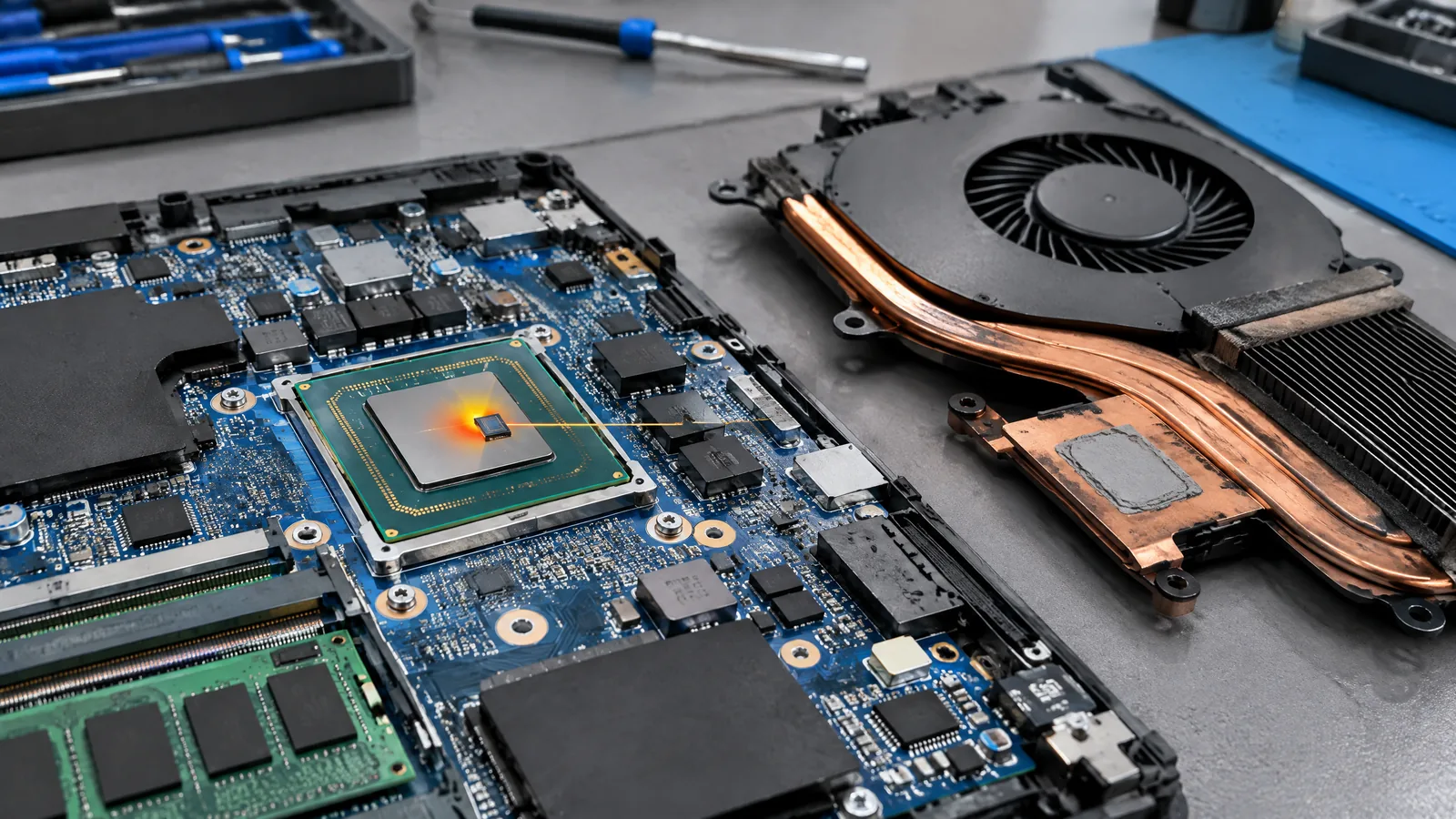
When a laptop fan suddenly becomes loud or a game starts running more slowly, the first useful clue is often the processor temperature shown by a monitoring app. The CPU on-die digital thermal sensor (DTS) measures thermal conditions inside the processor package, while firmware and the laptop cooling system decide how to respond; that number is not a thermometer for the whole laptop.
This article is part of the computer hardware technology guide library.
Key takeaways
The CPU on-die digital thermal sensor (DTS) is a semiconductor temperature-sensing function built into the processor, not a separate probe taped to the laptop motherboard.
A monitoring utility is an instrument that reads and displays processor telemetry. The fan, heat pipe, heatsink and firmware controller are separate system components.
As a processor approaches its thermal control limit, protection behaviour can reduce voltage and frequency. That can look like a sudden performance drop even when the laptop has not crashed.
A CPU reading describes the processor’s local thermal state. It does not directly tell you the temperature of the battery, keyboard, SSD, chassis or room.
What does a laptop CPU temperature sensor measure?
A laptop CPU temperature sensor reading is an estimate of thermal conditions at sensing locations inside the processor. In modern processors, the CPU on-die digital thermal sensor (DTS) converts that local condition into digital telemetry that firmware or software can use. The exact number of sensing points, labels and reporting method depend on the processor and platform.
This distinction matters when an app shows a value such as package, core, hotspot or distance to a limit. A core-related value may describe one part of the silicon, while a package value may combine or represent a wider processor domain. Do not assume that one displayed number is an average of every heat-producing part of the laptop.
Intel’s processor documentation places the Digital Thermal Sensor within its thermal-management features and describes DTS-based control in relation to fan operation and the processor’s thermal limit. That is why the sensor is useful for both observation and automatic protection, not just for a temperature dashboard.
Sensor, instrument and cooling system: three different things
People often call the whole monitoring setup a temperature sensor, but the parts have different jobs. The physical sensor function is inside the processor. The instrument is firmware, an operating-system service or a monitoring application that reads telemetry and presents a value. The cooling system includes the fan, heatsink, heat pipes or vapour chamber, vents and the surface that transfers heat away.
The controller is another layer. It can use sensor information to choose a fan speed, power state or performance policy. A laptop maker may also add temperature sensors for the motherboard, battery, memory, storage or palm rest. Those external sensors are useful for their own locations, but they are not the CPU’s on-die DTS.
This separation explains why a clean-looking temperature graph cannot prove that every laptop component is cool. It also explains why two utilities may show different names or values: they may be reading different processor domains, applying different labels or reporting different units and limits.
| Part | What it does | What it cannot prove |
|---|---|---|
| CPU on-die DTS | Measures local processor thermal conditions and supplies digital telemetry | The temperature of the whole laptop or every processor area |
| Monitoring utility | Reads, labels and displays available telemetry | That its label or update rate is identical across models |
| Fan and cooling assembly | Moves heat away and changes airflow or thermal transfer | That a high reading is caused by the sensor itself |
| Firmware or power controller | Uses thermal and power information to choose system behaviour | That every laptop exposes the same controls or thresholds |
Why do laptop fans speed up or performance change?
The CPU on-die digital thermal sensor (DTS) supplies information, but it does not physically turn the fan. Firmware and the platform controller interpret thermal conditions along with power, workload and system policy. Intel’s fan-control documentation describes fan-speed control using DTS control points and a thermal solution designed for the processor and expected ambient conditions.
If heat rises during compiling, gaming, video export or another sustained workload, the laptop may increase fan speed. That response is normal system behaviour. A thin laptop with a small cooling assembly may reach its chosen control point sooner than a larger model, even when both use processors from the same broad family.
Near a processor’s thermal limit, protection mechanisms can also reduce operating voltage and frequency. Intel’s Adaptive Thermal Monitor documentation describes gradual, coordinated reductions intended to protect the processor from overheating. In everyday use, this may appear as lower clock speed, slower completion of a demanding task or a performance dip that improves after the workload or temperature falls.
Thermal throttling is therefore not the same thing as a failed temperature sensor. It can be the expected protection response to heat, power limits, a cooling design, blocked airflow, a warm room or a workload that lasts longer than the system’s short boost period.
How should you interpret a CPU temperature reading?
Start with the context rather than one isolated number. Note whether the laptop was idle, charging, installing updates or under sustained load. Compare the reading with changes in fan sound, clock behaviour and the application being used. A brief rise during a burst of work does not carry the same meaning as a persistent rise with reduced performance or repeated warnings.
Check the processor and laptop documentation before treating a limit as universal. Sensor locations, temperature labels, control thresholds, reported offsets and the meaning of package or core values vary. Intel specifies an accuracy limit for the cited Alder Lake DTS implementation, but that family-specific figure should not be copied to every CPU or treated as the accuracy of an entire laptop measurement system.
A reading can also be affected by software polling, firmware filtering, power mode and the way the utility converts raw telemetry into degrees Celsius. If two tools disagree, record their labels and units first. The difference may reflect different sensors or reporting conventions rather than a physical temperature changing twice at the same instant.
- Identify the exact label: core, package, hotspot, temperature or distance to a limit.
- Record the workload, charger state, power mode and room conditions when the reading appears.
- Look for a repeated pattern instead of judging the laptop from one short spike.
- Use the laptop maker’s support guidance when warnings persist, the system shuts down, or performance remains abnormal.
What the DTS cannot tell you by itself
The DTS does not measure the battery, SSD, keyboard surface, display, charger or room. A laptop may have additional physical sensors for some of those areas, but their availability and visibility are model-specific. Nor does a CPU reading reveal whether a fan bearing, vent, heat-transfer interface or power circuit is healthy.
A temperature number also does not establish the cause of a problem. Dust, ambient heat, a changed power profile, background software, an aging cooling assembly or a sensor-reporting issue can lead to different symptoms. Avoid changing firmware limits or bypassing thermal protection just to keep a benchmark number lower; those controls exist within a hardware and software design that varies by model.
For ordinary troubleshooting, use the reading as one piece of evidence. Keep vents clear, use the manufacturer’s recommended operating position and update or service the laptop through appropriate support channels when symptoms persist. Opening a laptop or working around power and thermal components should be left to a qualified technician when the model’s service instructions or the risk are unclear.
Frequently asked questions
The answers below describe the general role of a processor DTS. Your laptop’s processor documentation and firmware remain the authority for model-specific labels, limits and controls.
Is the CPU on-die digital thermal sensor a separate thermometer inside a laptop?
It is a temperature-sensing function integrated into the processor rather than a separate room-style thermometer. It reports local processor thermal conditions to firmware or software. A laptop may also contain separate sensors for the battery, board, storage or other areas.
Does a laptop CPU temperature reading show the temperature of the whole laptop?
No. The CPU on-die digital thermal sensor measures the processor’s local thermal state. It cannot directly describe the battery, keyboard, SSD, chassis, charger or room, and those areas may have different temperatures.
Why does laptop performance drop when the CPU gets hot?
Thermal-management logic can reduce processor voltage and frequency as the processor approaches its thermal control limit. This protective response can lower performance temporarily. Fan speed, power policy, workload and the laptop’s cooling design also affect the result.
Why do two laptop temperature apps show different CPU values?
They may be reading different domains, such as a core or package value, or applying different labels, polling intervals and conversions. Compare the sensor names and units, and use the processor or laptop documentation before deciding that one reading is wrong.
Can I change the CPU sensor to stop thermal throttling?
The sensor is part of the processor’s thermal-monitoring system, and bypassing protection is not a safe troubleshooting step. Investigate workload, airflow, power mode and manufacturer guidance instead; seek qualified service if warnings or abnormal performance persist.
About the image
AI-generated editorial illustration; not an actual product or mission photograph.
Source notes
Reporting record
techduopulse stores source destinations privately. Public notes remain non-clickable so every visitor journey stays on this website.
Source note: Intel processor digital thermal sensor documentation
Primary source · DTS thermal-management role, cited ±5 °C accuracy specification, and DTS-based fan-speed control before Tj MAXSource note: Intel processor adaptive thermal monitor documentation
Primary source · Thermal throttling near TjMax and coordinated voltage/frequency reduction for protectionSource note: Intel processor fan-speed control and DTS documentation
Primary source · DTS control points, fan-speed ramping and dependence on the thermal solution and ambient designNew India-facing laptop application explainer distinct from the existing broad temperature-sensor guide. Separates the processor’s on-die DTS from monitoring software, firmware, fans and cooling hardware; explains thermal throttling without unsafe modification advice; and qualifies processor-family-specific accuracy and control claims.