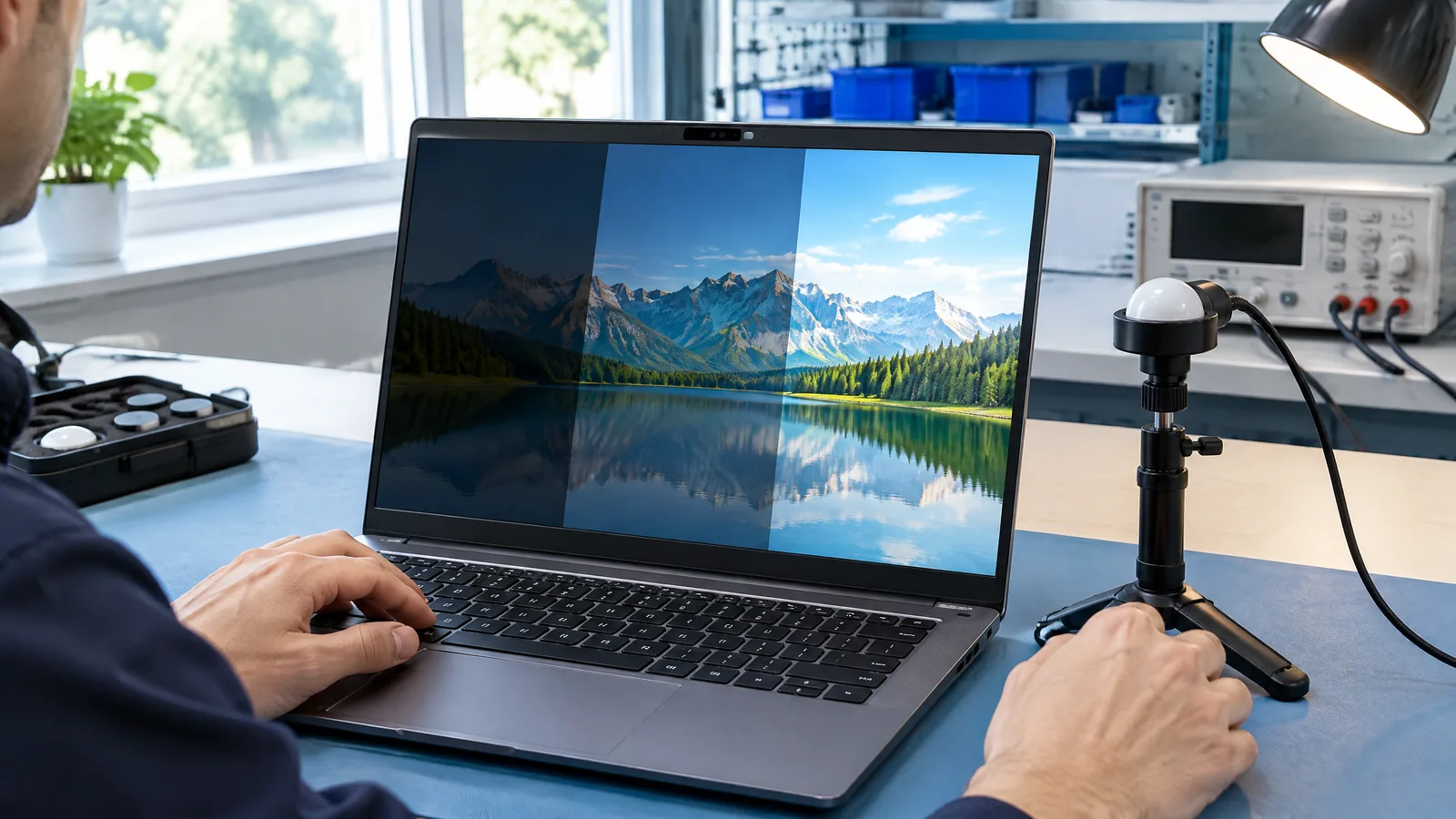
The screen looks too bright after you move from a dim room to a sunny window, or it suddenly dims when your hand passes over the laptop bezel. A laptop ambient light sensor (ALS) measures the light reaching the computer so firmware and operating-system software can choose a display-brightness response, but the sensor does not control the screen by itself.
This article is part of the computer hardware technology guide library.
What does a laptop ambient light sensor measure?
A laptop ambient light sensor is a small physical photosensor, usually integrated into the device enclosure near the display or another position chosen by the manufacturer. It estimates the surrounding illuminance at the sensor's field of view. Illuminance is commonly expressed in lux, but the value is a measurement produced by a complete optical and electronic system, not a universal property of the laptop's room.
The component may be an integrated digital light sensor with optical filtering and a configurable conversion process rather than a simple LDR. Sensor families differ in spectral response, dynamic range, sampling or conversion time, and resistance to infrared light. Those choices help a manufacturer make the reading more useful for a display system, but they also mean that two laptops can react differently in the same room. [1] [2]
The ALS is optional hardware. Some laptop models include one, while others provide manual brightness controls only. A laptop can still have an adaptive-brightness setting in its software even when the feature is unavailable, disabled, or dependent on a different platform component.
How auto-brightness uses the ALS reading
Auto-brightness is a system response, not the sensor itself. The ALS supplies a light reading to firmware, a sensor driver, or the operating system. A brightness policy then interprets that reading and selects a backlight or display level. The policy can smooth changes so the display does not jump with every small movement, and it can apply different behaviour for battery power, charging, or user preferences.
This separation explains why a working sensor does not guarantee a brightness change. A driver may be missing or disabled, adaptive brightness may be turned off, the system may be applying a vendor-specific profile, or the display hardware may have its own limits. Conversely, a brightness change does not prove that the ALS alone caused it; power-management and display settings can also affect the result.
For device makers, the sensor and the display are calibrated as a complete instrument. Microsoft recommends considering sensor type, accuracy, resolution, field of view, dynamic range, infrared and ultraviolet rejection, sampling rate, power use, and mechanical placement. It also recommends testing the completed device with different types of lighting and a professional light meter. [1]
- Physical ALS: detects light reaching the sensor.
- Firmware or driver: transports and validates the sensor data.
- Brightness policy: converts the reading and user settings into a display response.
- Backlight and panel: produce the visible brightness change.
Why can a laptop ambient light sensor misread a room?
The sensor measures light at its own location and angle, not an abstract average of the room. A bezel, display coating, dark cover window, keyboard light, desk reflection, window glare, or a hand over the sensor can alter the light entering the package. A sensor placed near the top edge may see a different mixture of light from one placed behind a display cover.
Spectral response matters too. Daylight, an LED bulb and a fluorescent source can have different spectral content even when they appear similarly bright to a person. Integrated sensors can use filters or eye-response matching to reduce some of this difference, but no small sensor sees every environment exactly as a human observer does. TI lists spectral matching, cover-material placement and dynamic range as design considerations for integrated light sensors. [2]
A slow or deliberately smoothed brightness transition is not automatically a defective sensor. The software may be averaging readings to avoid flicker or uncomfortable jumps. A sudden change after opening the lid, moving near a window, or uncovering the bezel can also be a normal response to a changed field of view.
| Observed behaviour | Possible explanation |
|---|---|
| Brightness changes when a hand passes over the bezel | The hand blocks or reflects light at the ALS location. |
| Screen reacts differently near a window | The sensor sees a stronger and more directional light source. |
| Brightness changes gradually | The system may smooth or average ALS readings. |
| Two laptops respond differently in one room | Their sensor placement, optical filtering, calibration and software policy differ. |
| No automatic change | The model may lack an ALS, or adaptive brightness, driver or system settings may be disabled. |
Laptop ambient light sensor not working: safe checks
Start with the model's specifications or user manual to confirm that an ALS is fitted. Do not assume that a webcam, proximity component or keyboard-light sensor is the same part. If the laptop includes an ALS, check the operating system's display and power settings for adaptive or automatic brightness, then install only the manufacturer's or operating-system vendor's normal driver updates. A missing toggle can be a software or platform-support issue rather than a failed physical sensor.
Keep the check simple and repeatable. Compare the response with the sensor area uncovered in a dim indoor setting, then in a brighter setting, without shining a very bright lamp directly into the opening. Avoid judging the result while holding the laptop at a changing angle. Confirm that manual brightness keys still work, because a display that cannot change manually points to a different problem than an adaptive-brightness policy that is merely disabled.
If the response remains implausible after settings and supported updates are checked, record the laptop model, operating-system version, lighting conditions and exact behaviour before contacting support. Do not open the display or probe the sensor circuit as a casual test: the sensor, cover, display cable and panel assembly are model-specific, and an external lux meter cannot prove that a particular internal component is electrically healthy.
- Confirm ALS hardware is listed for the exact model, not only for a related product family.
- Check adaptive-brightness and power/display settings.
- Keep the bezel or sensor window clean and unobstructed without disassembling the laptop.
- Compare behaviour under stable, ordinary indoor and outdoor shade lighting.
- Use manufacturer support if the sensor is absent from the system or remains erratic after supported software checks.
Limitations: an ALS is not a precision light meter
A laptop ALS can be useful for a display-control decision without being suitable as a reference instrument. The reading depends on the sensor's calibration, optical path, angle, spectral response, enclosure and electronics. Microsoft describes per-model calibration and complete-device testing because coatings, light pipes, placement and configuration can change the result. [1]
Do not convert a brightness-slider position into lux, and do not compare a laptop reading with a phone app as though either were automatically calibrated. A basic LDR circuit has its own nonlinear and temperature-dependent behaviour; it is not an interchangeable substitute for an integrated laptop ALS. [3] [4]
The practical question is whether the system gives a reasonable display response for the user's environment. For a safety-critical, accessibility-critical or measurement-critical task, use an application-appropriate calibrated instrument and professional verification rather than relying on auto-brightness.
Key takeaways
A laptop ambient light sensor is physical hardware that measures light near the computer; auto-brightness is the software and display response built on that reading.
Placement, shadows, cover materials, angle, light spectrum and model calibration can all change what the ALS reports.
Not every laptop has an ALS, and a brightness setting or driver does not prove that the hardware exists.
Check the exact model, settings and supported drivers before assuming a sensor failure; avoid opening the display for an unverified DIY test.
- The ALS measures local incident light, not the entire room.
- System policy determines how quickly and how far the display changes.
- A laptop ALS should not be treated as a calibrated general-purpose lux meter.
Laptop ambient light sensor FAQs
Where is the ambient light sensor on a laptop?
It is commonly placed near the display or another front-facing area, but the exact location is model-specific. Check the model manual rather than assuming it is the webcam or a visible pinhole.
Is auto-brightness the same as an ambient light sensor?
No. The ALS is the physical light-sensing component. Auto-brightness is the firmware, driver, operating-system and display behaviour that interprets its data.
Why does my laptop dim when I cover the top bezel?
Covering the sensor can reduce the light reaching it, so the system may interpret the change as a darker environment. The exact response depends on the model's placement and brightness policy.
Can I use a phone lux app to test a laptop ALS?
A phone app may provide a rough comparison, but it does not establish that the laptop sensor is calibrated or faulty. Different sensors, positions and spectral responses can produce different readings.
Do all laptops have an ambient light sensor?
No. ALS hardware is optional and varies by model. Confirm it in the exact model specification or manual before troubleshooting adaptive brightness.
About the image
AI-generated editorial illustration; not an actual product or mission photograph.
Source notes
Reporting record
techduopulse stores source destinations privately. Public notes remain non-clickable so every visitor journey stays on this website.
Microsoft Learn ambient-light sensor design guidance
Primary source · Laptop ALS placement, calibration, range and complete-device testingTexas Instruments integrated light-sensor overview
Primary source · Integrated sensors, filtering, spectral response, packaging and display brightness applicationsAnalog Devices light-sensor glossary
Primary source · Photosensor families and LDR/photodiode distinctionsSensors journal LDR characterization study
Secondary source · Nonlinear and temperature-dependent LDR behaviour; used only for general limitation contextCreated a distinct laptop application article rather than duplicating the existing broad light-sensor guide. Added laptop-specific coverage of physical ALS hardware, auto-brightness system behaviour, placement and spectral limitations, safe software-first troubleshooting, and model-specific scope. Claims are limited to the supplied technical sources; no universal laptop location or accuracy is asserted.