If Play Store is not downloading apps on an Android tablet, start with the low-risk checks: a working connection, enough device storage, a current Android system update, then a close-and-reopen or restart. Google Play Help lists those before account or data changes. Do one change at a time and retry the same download, so you can tell what fixed it.
This article is part of the software engineering technologies guide library.
Start with this safe order
Pending downloads, downloads that never begin, and updates that will not move can look alike. Start with the basics before clearing data or removing an account. Google Play Help puts connection, storage, Android updates, reopening the Store, restarting and automatic date/time ahead of advanced remedies.
Tablet makers rename Settings screens. If a label differs, search Settings for that word rather than installing an unofficial fix.
- Open a normal website over the same Wi-Fi. If it cannot load, reconnect to Wi-Fi or try another reliable connection, then retry Play Store.
- Open Settings and check Storage. If the tablet reports low space, make room before retrying; Google flags less than 1 GB free as a level that can stop downloads and installs.
- Check for the tablet's normal Android system update. Google’s generic route is Settings, then System, then Software update, then System update; the maker may name it differently.
- Close Play Store from the recent-apps screen, open it again and retry one app. If that changes nothing, restart the tablet and test once more.
- Check that automatic date, time and time zone are enabled. If they are already on, move on rather than toggling them repeatedly.
- Only after these checks should you consider Play Store cache or other advanced steps later in this guide.
Identify the symptom before changing anything bigger
The number of affected apps is useful. If every download has stopped, focus on the tablet, its connection and Play Store. If only one app fails while another downloads normally, that app may not be available for the tablet. Google directs readers with a one-app problem to check availability for their device.
Do not force an installation from an APK site because one listing will not install. A tablet can differ from a phone in Android version, hardware or publisher availability. The Play Store listing and developer are safer next checks.
| What you see | Start here | Do not assume |
|---|---|---|
| Several apps or updates remain Pending | Connection, storage, restart and automatic date/time | That deleting your account is the first fix |
| One app alone will not download | Check the Play Store listing for tablet availability and follow its official support route | That the same app is supported on every Android tablet |
| Download begins but installation does not finish | Free storage, restart, system update, then retry | That a downloaded file proves the app is compatible |
| Play Store itself will not open | Close/reopen, restart and the advanced Store steps below | That a factory reset is the next safe move |
Check Wi-Fi, mobile data and download settings
A Wi-Fi symbol is not proof that the connection can reach the internet. Try a normal page or trusted service over that network. If it fails, reconnect to Wi-Fi or try another known-good network. On a school, office or public network, ask the network owner rather than trying to bypass a restriction.
On mobile data, make sure the signal is strong and the plan permits the download. Play Store versions and tablet makers can show different download-preference labels. If your Store offers a Wi-Fi-only or over-any-network choice, choose deliberately: it can use mobile data.
If a download has been waiting, close and reopen Play Store, then retry one small trusted app or the original app. Testing one download avoids a larger queue while you isolate the fault.
Free tablet storage before retrying
Google says low storage can prevent an app from downloading and installing, and flags less than 1 GB available as a warning sign. Open Settings, then Storage, and look at the categories taking space. The available amount matters more than the tablet's advertised capacity.
Start with completed downloads, duplicate videos, offline media you no longer need, or unused apps. Android’s storage help also describes selecting unused files and apps and moving selected files to Trash. Check selections before confirming; a cloud icon is not proof every original is backed up.
An SD card is not a universal answer. An app may still need internal space to download or install, and tablets handle removable storage differently. Free some internal space and retry first.
Fix Play Store updates that will not start
First update Android through the tablet's official system-update screen if one is offered. Google lists a system update as a basic step, not a guarantee that every failed app will work. Keep the tablet charged or on power and leave enough space; do not interrupt an update in progress.
Then reopen Play Store and try the affected update again. If only one existing app will not update, check its Store listing and the developer's support information. A working tablet can still be unable to install one particular app.
Do not uninstall an app you need merely to test this. Reinstalling can remove local content or sign you out, so confirm backup or recovery options first.
Use cache and account steps only as an escalation
If several apps still will not download, Google’s next documented step is to clear the Google Play Store cache. On many tablets, touch and hold the Play Store icon, choose App info, then Storage & cache, then Clear cache. Wording can differ by maker. Reopen the Store and test before doing anything else.
Clear Play Store storage or data only if cache did not help and you have read the on-screen warning. Google says it can reset Store settings such as parental controls and password protection, and may require accepting the terms again.
Treat Google Play services data, removing and re-adding a Google Account, and uninstalling Play Store updates as later support steps. Google warns that Play services storage can remove device-saved information. Removing an account removes associated email, contacts and settings from that tablet. Back up important local information, make sure you can sign in again, and get the owner’s permission on a shared or managed tablet.
- Stop after clearing Play Store cache and test the original download first.
- Do not clear Google Play services storage casually; Google places it after other troubleshooting and warns about device-saved information.
- Do not remove the only account on a managed tablet without the owner or administrator’s help.
- Do not factory-reset the tablet for this problem unless the owner has a verified backup and has chosen that route with official support.
When to stop and get help
Stop if the tablet belongs to an employer, school or another person, if you do not know the Google Account sign-in details, or if a step asks you to erase information you cannot replace. Contact the administrator for a managed tablet, the app developer for a one-app issue, or the tablet maker when Android cannot update or Play Store will not open after the basics.
A factory reset removes far more than this fault. Leave that decision to a prepared owner with a tested backup and official support instructions.
Play Store not downloading apps: FAQs
These answers reflect Google Play and Android Help pages checked on 15 October 2026. Labels and the exact order of menus can vary by Android version and tablet maker.
Why are apps not downloading from Play Store on my tablet?
Rule out an unreliable Wi-Fi or mobile connection, low internal storage, a pending Android update, a temporary Store problem and incorrect automatic date/time. If every app fails, use those basics before changing account or app data. If one app fails, check whether it is available for that tablet.
What should I check first when Play Store says Pending?
Check that the tablet can reach the internet, then inspect available internal storage. Google flags less than 1 GB free as a level that can prevent downloads and installs. Close and reopen Play Store, restart, then retry one app before cache or account steps.
Will clearing Play Store cache delete my installed apps?
Clearing the Play Store cache is not an instruction to uninstall installed apps. Start there rather than with Clear storage. Google says clearing Play Store storage can reset Store settings such as parental controls and password protection, so use that larger step only if cache did not help.
Why will a Play Store app download but not install on my tablet?
Low internal storage can stop both downloads and installations, so check storage first. Then restart and check for the normal Android system update. If only one app is affected, its availability for your tablet also matters. Do not sideload an unknown installer to bypass a limit.
Should I remove my Google Account to fix Play Store?
Not first. Google lists removing and re-adding an account after basic checks. Removing it deletes associated email, contacts and settings from that tablet. Back up local information, ensure you can sign in again, and do not use this on a managed tablet without the owner or administrator.
Editorial note
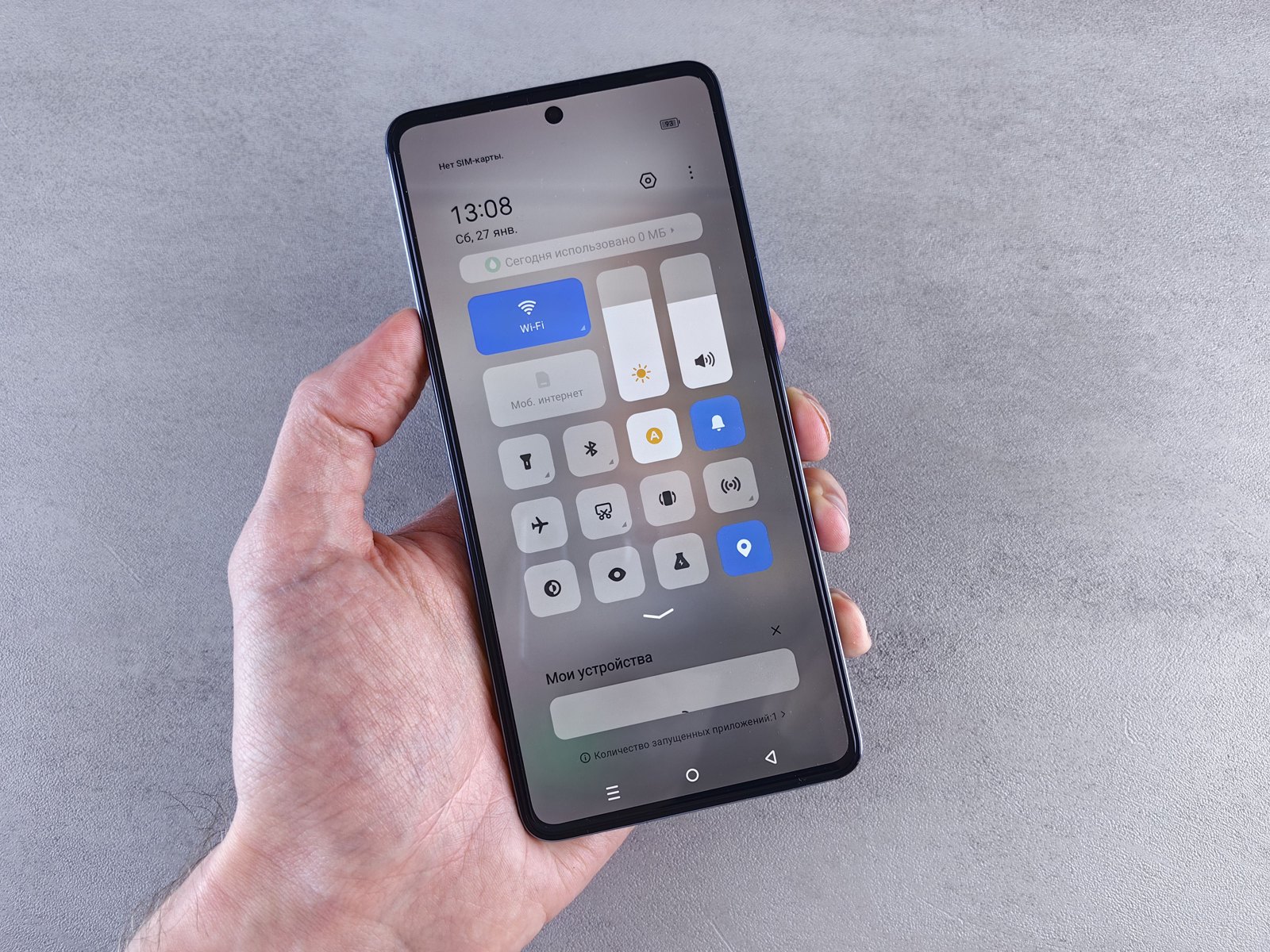
The cover photo is a contextual image of a generic tablet in use. It is not a screenshot of Google Play and does not identify a tablet model.
About the photograph
A generic tablet in use. This contextual image does not show a particular Android tablet or the Google Play Store.
Source notes
Reporting record
techduopulse stores source destinations privately. Public notes remain non-clickable so every visitor journey stays on this website.
Android storage review and backed-up-media cleanup source note
Primary source · Storage categories, file selection, trash and unused-app managementSource note: Google Play basic download troubleshooting
Primary source · Connection, storage, system-update, restart and date/time troubleshooting sequenceSource note: Google Play advanced multiple-download troubleshooting
Primary source · Play Store cache and storage, Google Play services cautions, Play Store update remediationSource note: Google Play one-app download troubleshooting
Primary source · One-app availability and reinstall escalationSource note: Android account-removal implications
Primary source · Information removed from device when an account is removedInitial 15 October 2026 tablet-specific troubleshooting explainer. Uses Google Play and Android Help to prioritise reversible checks, separates one-app availability from all-app faults, gives storage and update decisions, and clearly limits cache, services, account and reset escalation to avoid preventable data loss.