For most people buying one main device, a laptop is the safer choice for study and everyday work. It handles long typing, desktop-only programs, several files and browser windows, and course or work portals with specific requirements. Choose a tablet first only when your real routine is reading, notes, calls and web-based tasks — and the exact model, keyboard and required apps have passed your test.
This article is part of the computer hardware technology guide library.
Laptop vs tablet: the quick verdict
Choose a laptop if a failed assignment upload, spreadsheet, presentation, coding tool or work system would cause a problem. It is the lower-risk starting point when you do not yet know every required app, file type or browser tool.
Choose a tablet if your must-do tasks already work well in its apps or browser, and you value a lighter device for reading and pen-based notes. A keyboard helps with writing, but it does not make every tablet workflow equal to a laptop workflow.
- Pick a laptop for long documents, desktop software, many files or frequent multi-window work.
- Pick a tablet for reading and notes when your course or work runs reliably on that exact model.
- If you are unsure, do not make a tablet your only device until you test the requirements.
Laptop vs tablet comparison at a glance
This is about using one device as your main study-and-work machine. Model, operating-system version, app and accessory support can change the answer.
Use the last column as a buying test. A slim body cannot fix a required portal that will not work properly.
| Decision area | Laptop as the main device | Tablet as the main device | What to check before deciding |
|---|---|---|---|
| Long writing | Usually the simpler setup for reports and repeated typing. | Works with a physical keyboard; comfort varies. | Type for 20–30 minutes in your actual app. |
| Multitasking | Windows supports window arrangement, task switching and multiple desktops. | Some models support windows or desktop-style modes. | Open notes, portal, document and call together. |
| Software and portals | Safer when desktop software or a desktop browser is required. | Fine for supported apps and web tasks. | Test sign-in, upload and download. |
| Reading and notes | Less natural to hold and write on directly. | Often better for reading, marking up and pen input. | Check pen support and file export. |
| Desk setup | Keyboard and pointing device are built in. | May need a keyboard, stand, hub or mouse. | Add needed accessories before comparing totals. |
| Carrying daily | Usually more to carry. | Often easier to hold for reading. | Compare the complete kit, including case and keyboard. |
Start with your non-negotiable tasks
List the tasks that cannot fail: an examination system, required program, presentation feature, PDF upload, shared folder, company VPN or spreadsheet template. Find the official system requirements before comparing displays or battery claims.
An app existing is not proof that it can create, export or manage files as needed. If a requirement says Windows, macOS, a desktop application, a browser extension or a managed work device, get written confirmation before making a tablet your only computer.
- Write down the three tasks that would be hardest to complete on a borrowed device.
- Find the official requirements, including operating system, browser, keyboard and file format.
- Complete a small real task on the exact model if you can.
- Choose the device that passes every essential task.
Typing, files and multitasking: why a laptop is usually safer
A laptop already has a keyboard, trackpad and stable screen angle. That makes it easier to move between notes, a browser, source material and a draft without turning the purchase into an accessories project.
Microsoft documents Snap, Alt+Tab, Task View and separate desktops in Windows. Those tools do not make every laptop fast, but they show why a laptop is often easier to organise when several tasks are open.
Check where downloads go, how you attach files and how a document exports before you rely on any device. Keep a second copy of important work and verify you can access storage and recovery methods from another trusted device.
When a tablet can be a good primary device
A tablet can be a good main device when essential tasks are browser-based or work well in supported apps, and reading or pen notes are daily priorities. Its notes must still be findable, exportable and shareable in the formats you need.
Apple documents windowed iPad apps in iPadOS 26 or later. Google documents physical keyboards and desktop windowing on supported Android devices. Google also says this is not on all devices and the experience varies; Apple’s features are tied to stated versions.
Test your portal, document, reference material and video call together. Add a physical keyboard for regular writing. Apple India lists model-specific keyboard compatibility and says accessories are sold separately and subject to availability.
Budget the complete working setup, not just the device
A tablet’s working total can include a keyboard, case, stand, pen, hub, mouse, charger or storage. A laptop normally already includes its keyboard and trackpad. Count only accessories that solve a real task.
Use simple arithmetic: tablet ₹X + keyboard ₹Y + hub ₹Z. This is a hypothetical method, not a price forecast or purchase advice. Compare the same capacity, warranty terms and included items, then confirm current India price and stock before spending.
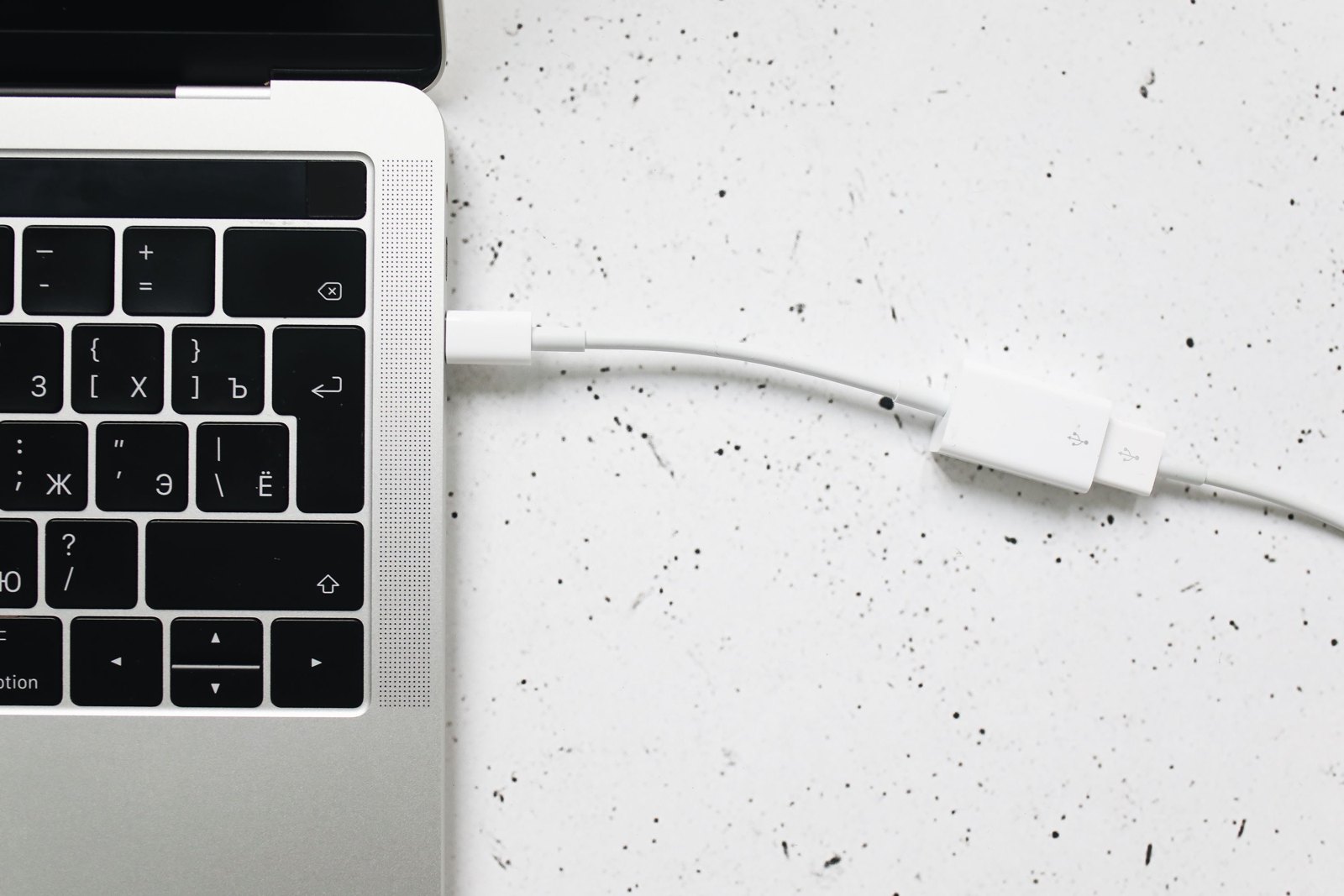
Also confirm exact port and cable support. A USB-C-shaped connector alone does not prove video, data or charging capability.
Safe setup checks and reversible fixes
Check your setup before a deadline. Install normal official system and app updates, then restart the app or device if a connection or windowing feature misbehaves. Do not use unofficial firmware, configuration profiles or chat links to unlock features.
For Android Bluetooth keyboards, Google’s published path is Settings, Connected devices, then Pair new device; wording can vary. For supported iPad windowed apps, Apple’s current path starts in Settings, then Multitasking & Gestures. If an option is missing, confirm model and version requirements first.
Do not factory-reset a primary device for a keyboard, display or multitasking issue. Back up files, verify email, storage and authenticator recovery access elsewhere, then use official manufacturer or institution support if basic checks fail.
- Stop and ask for support if a required portal cannot upload, download or complete a test.
- Check compatibility if an external display only mirrors when you need a separate workspace.
- Do not reset when important files or recovery codes exist only on that device.
- Escalate when stated course or work requirements conflict with the device.
A simple checklist for choosing your primary device
Choose the laptop if you need desktop software, long reports, many files, several windows, or cannot test tablet compatibility before buying. It is the lower-risk all-round choice.
Choose the tablet if every required service works on that exact model, you have a comfortable writing setup, and reading or handwritten notes will be a daily benefit. Keep a backup and a second route to important accounts.
Laptop vs tablet FAQs
These answers reflect official Apple, Google and Microsoft documentation accessed on 15 October 2026. Exact features can change with the model, version, app, region and accessory.
Is a laptop or tablet better for students?
A laptop is usually the safer first device because it is less likely to be limited by typing, desktop software, file work or multiple windows. A tablet can fit reading and handwritten notes if the school’s required services have been tested on the exact model.
Can a tablet replace a laptop for everyday work?
Sometimes. It can handle web documents, email, calls and supported apps with a physical keyboard. Treat it as a replacement only after your work systems, file exports and multitasking needs work reliably on that tablet.
Can I use multiple apps at once on a tablet?
Some tablets can. Apple documents windowed apps in iPadOS 26 or later, and Google documents desktop windowing on supported Android devices. Check the exact manufacturer guidance because support varies.
Should I buy a keyboard with my tablet?
Use a physical keyboard for regular documents, emails or assignments. Test a real desk session and confirm compatibility for the exact tablet; one keyboard case does not fit every generation.
What if my tablet cannot run a required college or work tool?
Do not reset it or install unofficial software first. Save your work, confirm official requirements, and use the provider’s supported alternative or IT route. A laptop may be necessary when a desktop system or program is mandatory.
Editorial note
The hero image is a contextual photograph of laptops, a tablet and phones on a desk. It does not depict or endorse a specific product.
About the photograph
Contextual photograph of a laptop-and-tablet desk setup; it does not show a specific recommended model.
Source notes
Reporting record
techduopulse stores source destinations privately. Public notes remain non-clickable so every visitor journey stays on this website.
Source note: Apple Support on iPad multitasking
Primary source · iPadOS version-qualified windowed apps, side-by-side use, resizing and keyboard app switchingSource note: Apple India keyboard compatibility information
Primary source · Model-specific keyboard compatibility, Bluetooth keyboard support and separate-accessory qualificationSource note: Microsoft Support on Windows multitasking
Primary source · Windows 10 and 11 Snap, Alt+Tab, Task View and multiple-desktop functionsSource note: Google Android Help on physical tablet keyboards
Primary source · Keyboard pairing, physical-keyboard settings, touchpad settings and Android-version qualificationSource note: Google Android Help on tablet desktop windowing
Primary source · Supported-device desktop windowing, connected-display modes and manufacturer-variation limitInitial 15 October 2026 India-focused primary-device explainer. Leads with a risk-based verdict, separates tablet capabilities from model and version guarantees, adds an all-in setup-cost method, and gives safe reversible checks with backup and escalation guidance. It avoids model recommendations, unverified India prices, hands-on claims and unsupported product references.