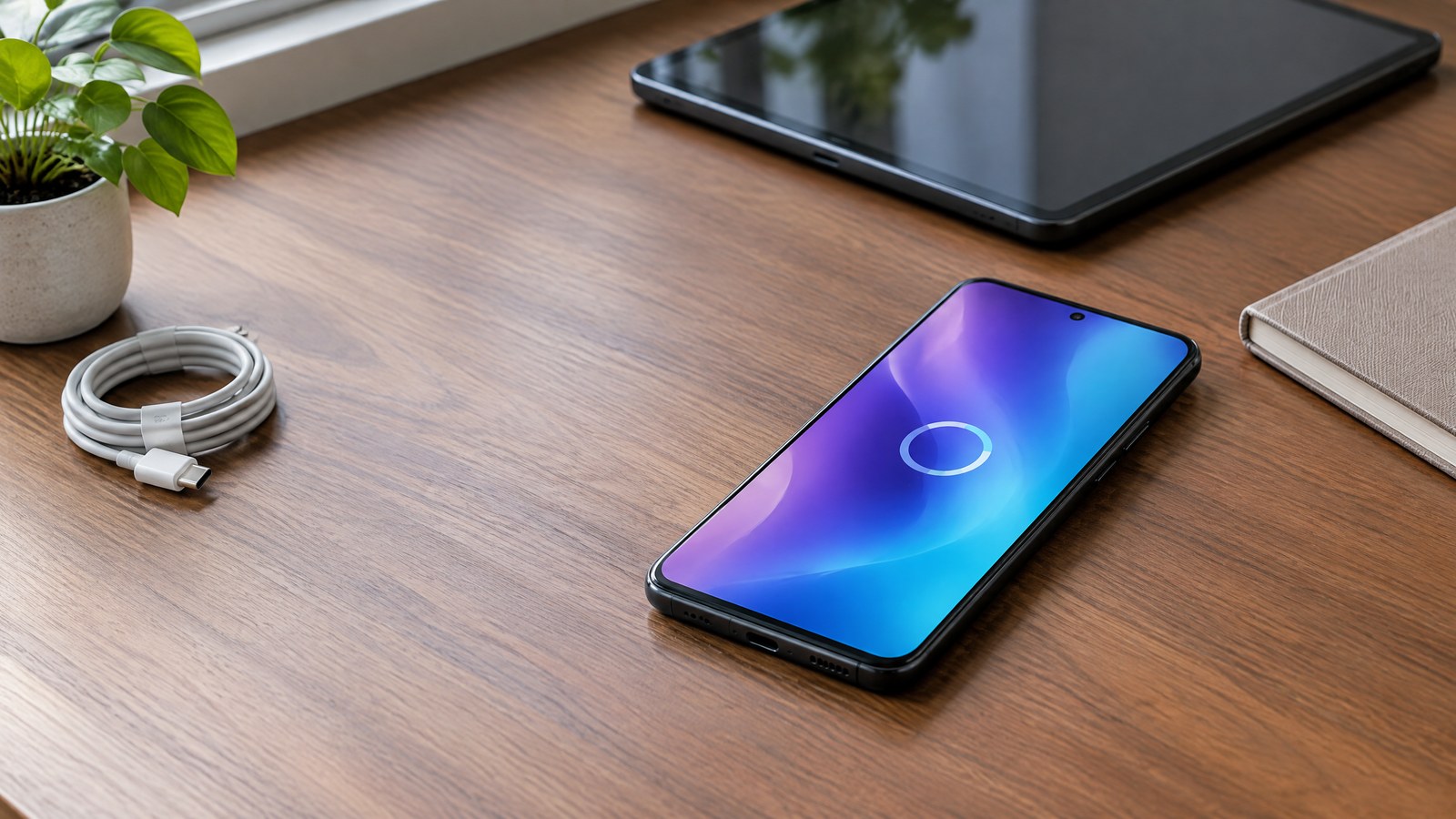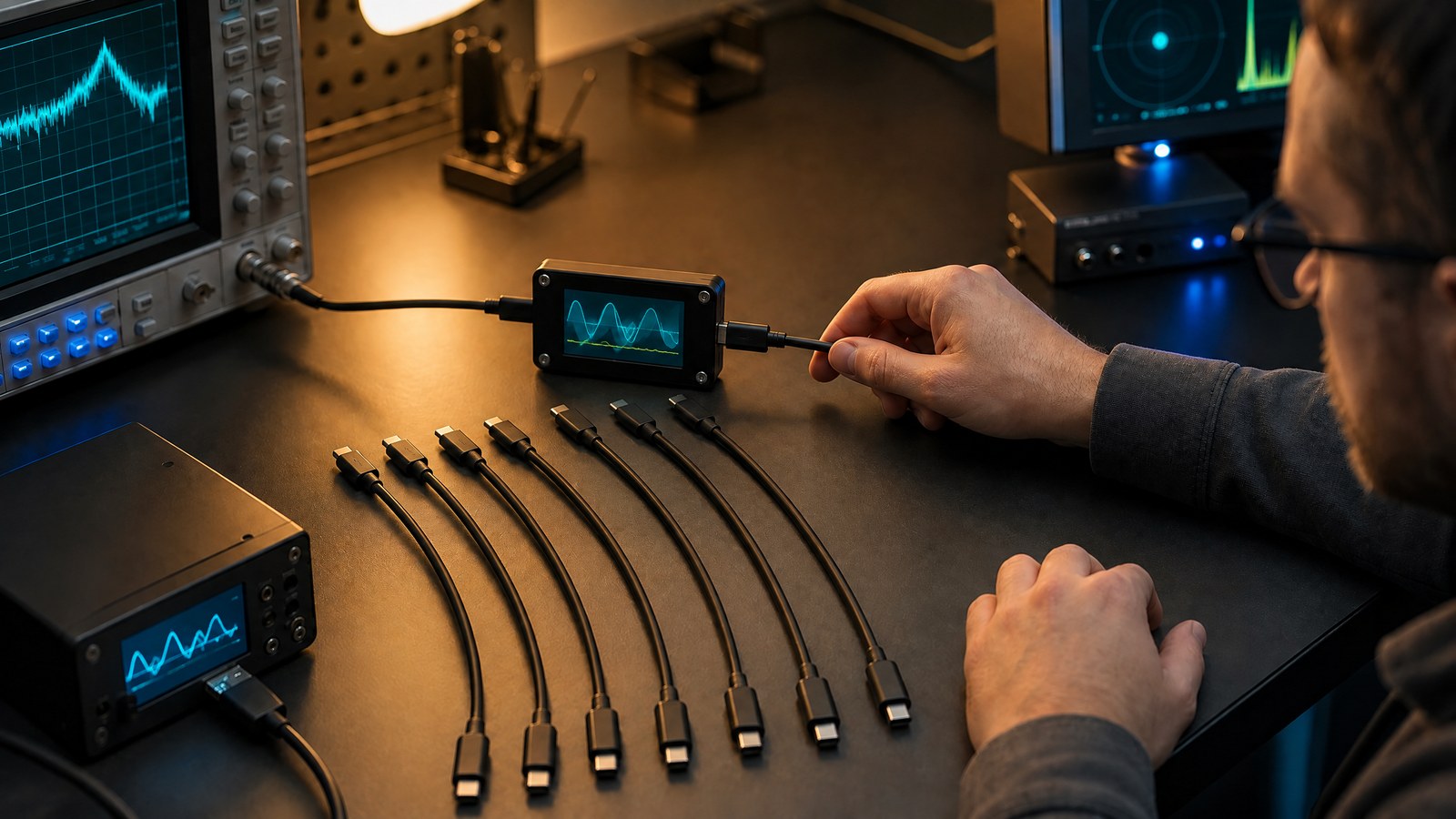
Two cables with the same small reversible USB-C plug can behave very differently. One may handle basic charging and USB 2.0 data; another may support higher power, fast data, or display output. The connector shape tells you how it plugs in, not the complete set of capabilities inside the cable or at either port. A better approach is to match the task—charging, data transfer, docking, or display—to the complete connection path.
This article is part of the consumer technology guide library.
Start by separating the plug from the protocol
USB-C, formally USB Type-C, is a connector system with a reversible plug. It can be used with different USB data generations and with optional functions such as USB Power Delivery or alternate modes. That flexibility reduces connector clutter, but it also means visual similarity is weak evidence of capability. Do not assume that a USB-C cable carries high-speed data, supports video, or delivers a specific charging power just because both ends fit.
Think in three separate questions. First, how much power can the source, cable, and device negotiate? Second, what data mode do the port and cable support? Third, does the device support a video alternate mode or another display pathway? A connection only performs the overlapping capabilities supported by every necessary component. The least capable relevant part of the path can set the result.
Power delivery needs a compatible chain
USB Power Delivery, or USB PD, is a specification that lets connected products negotiate power more flexibly. It does not mean that every USB-C charger or cable supplies the same power. The charger must offer an appropriate power profile, the receiving device must request it, and the cable must be rated for the needed current and voltage. A device may simply charge at a lower level if one part of the chain lacks the desired capability.
USB-IF says USB PD Revision 3.1 enables up to 240 watts over a full-featured USB Type-C cable and connector under the specification’s conditions. That ceiling is not a recommendation to use any high-wattage charger with any product. Use hardware that follows the device maker’s requirements and is in good condition. Power negotiation is designed to coordinate compatible equipment; damaged or poorly made cables are a separate safety and reliability concern.
Read cable markings, then verify the task
USB-IF’s compliance program requires USB-C to USB-C cable categories to be marked with a 60 W or 240 W power capability. Except for high-speed USB 2.0 USB-C cables, compliant cables also require the appropriate data-rate marking. Those markings can help distinguish claims, but they are not a complete map of every product function. Packaging, device documentation, and the exact port matter when the task includes high-speed transfer or a display.
An electronically marked cable, often called an e-marked cable, contains information that can help a system identify its capabilities for certain uses. You do not need to diagnose the chip to make a practical choice. Instead, choose a cable whose stated power and data capabilities meet your actual need, and avoid treating a charging result as evidence that a cable is suitable for a high-speed drive or demanding dock.
Data speed is independent of charging speed
A cable can charge a device successfully while moving data slowly. USB 2.0, USB 3.x, USB4, and related modes have different data capabilities, and a cable may omit the conductors needed for a faster mode. This is why a cable that is excellent for a small accessory can become a bottleneck for file transfers, external storage, or a dock. Charging and data should be evaluated as separate requirements.
For large transfers, identify the ports on both devices and the cable’s stated data rate. Then consider the storage device, software, and files themselves, which can be additional limits. A fast port on a computer cannot make a basic data cable faster, and a high-capability cable cannot make a slow external drive perform like a faster one. Match the cable to the slowest meaningful part of the workflow.
Video needs port support as well as a cable
USB-C can carry display signals through an alternate mode, but not every USB-C port implements the needed display function. DisplayPort over USB-C uses the connector’s Alternate Mode Functional Extension to carry video, and it can share the connection with some USB data and power arrangements. The exact trade-off depends on the devices, cable, display mode, and system implementation, so a plug alone cannot confirm monitor compatibility.
When connecting a display, first confirm that the source port supports the relevant video mode. Next check the monitor or adapter input, the cable’s stated capability, and any resolution or refresh-rate requirements. If a setup works at a lower resolution but not a higher one, that can reflect bandwidth limits somewhere in the chain. Troubleshoot one link at a time rather than replacing equipment at random.
Build a small cable kit around real jobs
Most people do not need every cable to do every job. Keep a clearly identified charging cable for routine power, a proven data cable for transfers, and a capable cable for a dock or display if you use one. Labeling your own cables with a simple physical marker can prevent accidental swaps when manufacturer markings are small. Replace cables that are damaged, loose, overheated, or intermittently disconnecting.
For an unfamiliar connection, begin with the simplest supported configuration and add complexity only when needed. Direct device-to-device charging, a basic transfer, or a known-good display cable can isolate the question. USB-C’s versatility is valuable because one connector can support several roles. It becomes less confusing when each role is verified by the cable, the source port, the receiving device, and the intended workload together.
Source notes
Reporting record
techduopulse stores source destinations privately. Public notes remain non-clickable so every visitor journey stays on this website.
USB-IF cable compliance overview
Primary source · Cable power and data markingsUSB Power Delivery overview
Primary source · Power Delivery capabilityVESA DisplayPort over USB-C technical details
Primary source · Display alternate modeImage updated: embedded writing removed; article content and factual claims unchanged.