A laptop can have a power button that looks biometric, yet Windows may still show no fingerprint option when you try to sign in. A laptop fingerprint sensor reads the pattern of ridges on a finger for biometric verification, but the reader, driver, Windows Hello enrollment and anti-spoofing support must work together before fingerprint sign-in is available.
This article is part of the computer hardware technology guide library.
What does a laptop fingerprint sensor actually do?
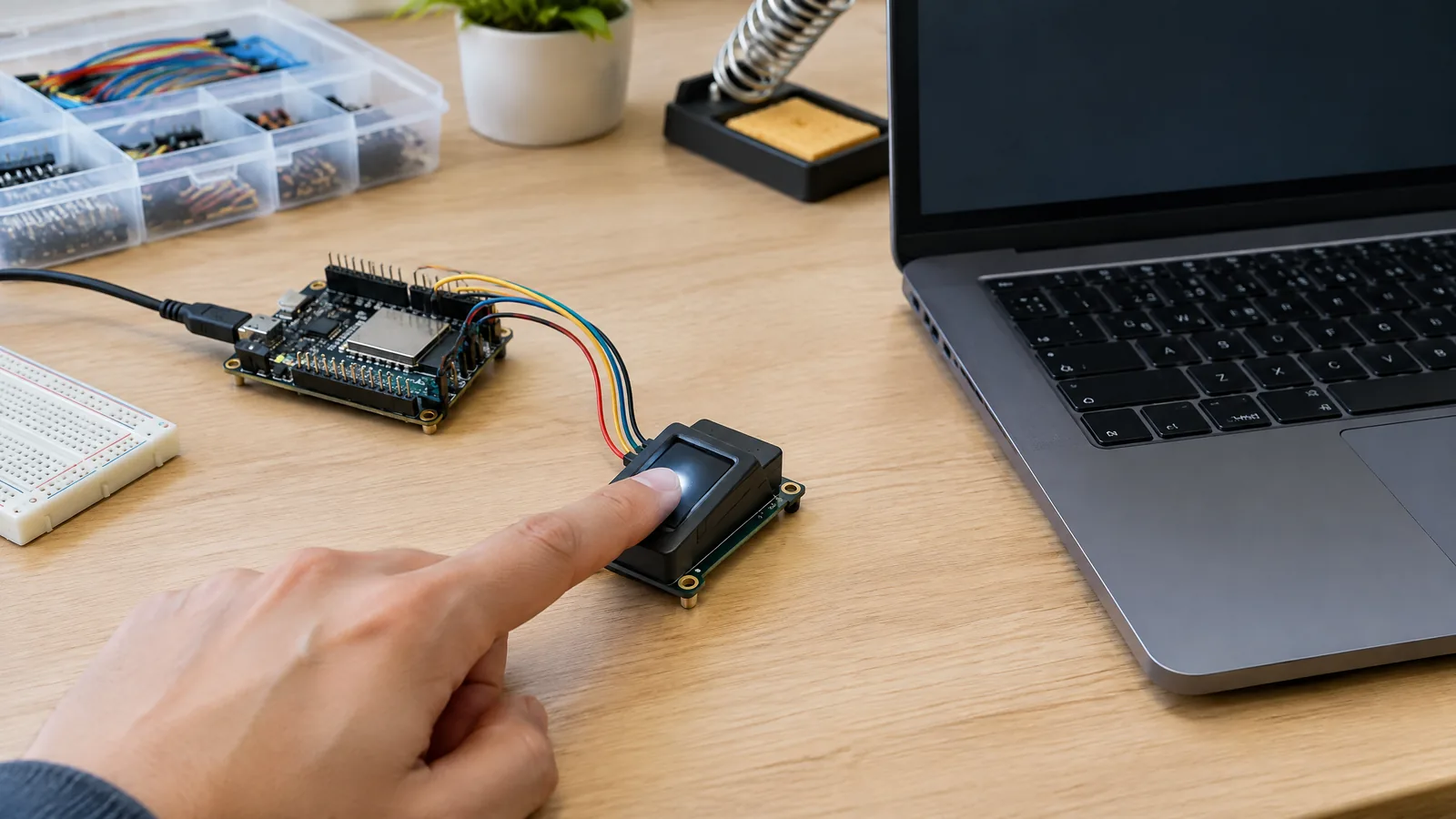
A laptop fingerprint reader is a physical biometric sensor. It captures a fingerprint sample when you touch or swipe the reader and passes that input to the device's biometric and sign-in software. The sensor does not, by itself, decide whether a person is authorised or unlock a Windows account.
Windows Hello uses the enrolled fingerprint as part of a sign-in flow. Microsoft describes a biometric sample as the complete sample needed for verification and a biometric spoof as a synthetic replica. That distinction matters: the reader is one component, while matching, liveness or anti-spoofing checks, the driver and the operating system determine the final experience.
Laptop fingerprint sensors are optional and model-specific. Some are integrated beside the touchpad, on a keyboard key or in a power button. A power button's shape is not proof that it contains a reader; Microsoft documents button mapping as separate sensor information that an OEM driver may provide.
- Physical sensor: captures a fingerprint touch or swipe.
- Driver and biometric service: connect the hardware to the operating system.
- Windows Hello: handles enrollment and the sign-in experience.
- Fallback credential: a PIN or password remains important when a scan fails.
How Windows Hello fingerprint setup works
On a compatible Windows device, open Settings, choose Accounts, then Sign-in options. Select Fingerprint recognition (Windows Hello), choose Set up and follow the prompts. Microsoft says fingerprint sign-in requires a fingerprint reader; a laptop without an integrated reader can use a compatible external USB reader, but compatibility and security support still depend on that hardware and its driver.
During enrollment, place the same finger on the reader in the positions requested by Windows. The goal is to give the system useful coverage of the finger rather than repeatedly tapping one identical spot. Registering another finger can also help if you commonly use the laptop with either hand.
The reader's position can vary widely. Microsoft's fingerprint-authentication documentation lists external sensors, keyboard positions, the right of a touchpad and power-button mappings among possible layouts. This is why a general laptop photo or a similarly named model is not enough to confirm that a particular unit has a working sensor.
- Confirm that Fingerprint recognition appears under Settings > Accounts > Sign-in options.
- Create or confirm the Windows Hello PIN when Windows requests it.
- Enroll the finger using several angles and follow the on-screen prompts.
- Add a second finger if the option is available, then test sign-in without deleting the PIN fallback.
Why fingerprint readers have security and accuracy limits
A Windows Hello-compatible reader is expected to do more than produce an image or pattern. Microsoft's hardware requirements distinguish large-area, small-area and swipe readers and specify false-accept targets, false-reject performance with anti-spoofing or liveness detection, and presentation-attack defences. These are platform requirements, not a promise that every laptop reader will feel identical or accept every finger on every attempt.
A false reject means a legitimate user is not verified; a false accept means an unauthorised person is verified. Dry skin, a wet or dirty reader, a changed finger surface and an incomplete touch can all affect practical use. A reader can therefore be useful for quick everyday sign-in while still needing a PIN or password for recovery and exceptional cases.
Do not treat a fingerprint reader as a replacement for every account security control. Windows Hello's sign-in availability depends on the device, firmware, driver, policy and software configuration. A reader that works in one laptop model or Windows installation may not work in another.
| What you see | What it proves | What it does not prove |
|---|---|---|
| A power button with a smooth or marked surface | The laptop may have a button-shaped input area | That it contains a fingerprint reader or supports Windows Hello |
| Fingerprint recognition listed in Sign-in options | Windows can see a supported sign-in path on that installation | That every enrolled scan will succeed |
| An external USB reader | The laptop can physically connect to another reader | That the reader has the required driver, anti-spoofing or policy support |
Laptop fingerprint reader not working: safe checks first
If Windows says that your fingerprint could not be recognised, use the PIN or password to sign in first. Microsoft recommends checking the reader, re-registering fingerprints and checking driver updates rather than treating a failed scan as proof that the hardware is permanently broken.
Keep the reader clean and dry, and make sure the finger is clean and dry as well. Re-enrol the same finger while following the prompts from different angles. If you usually use more than one finger, add another through Settings > Accounts > Sign-in options > Fingerprint recognition (Windows Hello) > Add a finger.
If the fingerprint option is missing altogether, check the laptop's specifications and the device manufacturer's support page for the exact model. An absent option can mean there is no physical reader, the driver is missing, the reader is disabled, or device policy does not allow the feature. Do not infer the cause from the power-button design alone.
- Sign in with the PIN or password instead of repeatedly forcing failed scans.
- Clean and dry the reader and your finger.
- Re-register the fingerprint using different angles.
- Register more than one finger if Windows offers the option.
- Check the exact laptop model and driver updates from its manufacturer.
Key takeaways
A laptop fingerprint sensor is an optional physical reader, not the complete sign-in system. Windows Hello setup, drivers, enrollment, matching and anti-spoofing support all matter.
A reader may be integrated in a power button, keyboard or touchpad area, or supplied as an external USB device. Its appearance alone does not confirm biometric capability.
When scans fail, use the PIN or password, clean and dry the reader, re-enrol from different angles, add another finger and check the exact device driver.
Keep a fallback credential because biometric recognition can fail even when the sensor and software are functioning normally.
Laptop fingerprint sensor FAQs
Is a fingerprint reader included in every laptop?
No. A fingerprint reader is optional and model-specific. Check the exact laptop specification and Windows Sign-in options rather than assuming that a power button or a premium laptop design includes one.
Can I add a fingerprint sensor to a laptop?
Microsoft documents external USB fingerprint readers as an option for devices that did not come with an integrated reader. The reader still needs suitable Windows Hello support, drivers and security characteristics, so verify the exact accessory before buying.
Why does my laptop fingerprint reader stop recognising me?
A dirty or wet reader, a wet or dry finger, an incomplete touch, changed finger condition or a driver issue can affect recognition. Sign in with the PIN or password, clean and dry the reader, re-register different angles and check driver updates.
Is a fingerprint sensor safer than a laptop password?
It offers a convenient biometric sign-in path, but its security depends on the reader, anti-spoofing measures, Windows Hello and device configuration. Keep the PIN or password as a fallback and do not treat the physical sensor alone as a complete security guarantee.
About the image
AI-generated editorial illustration; not an actual product or mission photograph.
Source notes
Reporting record
techduopulse stores source destinations privately. Public notes remain non-clickable so every visitor journey stays on this website.
Source note: Microsoft Windows Hello biometric requirements for facial feature recognition
Primary source · Fingerprint reader classes, false-accept/false-reject requirements and presentation-attack defenceSource note: Microsoft Support Windows Hello setup guidance
Primary source · Settings path, fingerprint reader requirement and external USB reader optionSource note: Microsoft Support Windows Hello troubleshooting guidance
Primary source · Clean and dry reader, re-register angles, driver updates and multiple fingerprintsSource note: Microsoft Learn fingerprint-authentication layout guidance
Primary source · Sensor location, shape, power-button mapping and enrollment informationNew India-beginner-facing hardware explainer for the laptop fingerprint sensor query. Separates the optional physical reader from Windows Hello matching and sign-in outcomes; covers integrated and external readers, layout uncertainty, Microsoft-supported setup and troubleshooting, security limits and fallback credentials without universal capacitive-sensor claims or unsupported model promises.