Google Calendar sync normally means that events in one Google account appear on every device where that same account is signed in. Sharing is different: it lets another person see or edit a calendar only at the permission level you choose. Start by checking the right account and calendar, then set alerts separately. If an event is missing, use the safe checks first instead of deleting an account or resetting a phone.
This article is part of the software engineering technologies guide library.
How Google Calendar sync works across devices
Create an event in a Google calendar and it should appear on every other signed-in device if calendar visibility and sync are enabled. A shared calendar’s permission independently controls whether another person can view or edit it.
If an event appears on the web but not one phone, focus on that phone's app, account and calendar settings. If it is absent on the web too, check the account and the calendar selected when it was created. An event saved in another app or account will not automatically become a Google Calendar event.
Google Calendar Help also says the mobile app only syncs past events for up to one year. For older history, check the web calendar before assuming that a past event was lost.
Set up Google Calendar sync settings safely
Use the same Google account on each device you want to keep in step. On Android, Google directs users with sync trouble to confirm that Calendar sync is enabled for the account and that the required calendar is selected in the app. On iPhone or iPad, Google says you can add the Google account in device settings and turn on Calendars for an existing account. The exact setting names can differ by phone maker, iOS or Android version and language.
Before changing several settings, create a harmless test event and check it on the web and a second device using the same account. Delete the test event once you know where the break is.
If you use Apple Calendar instead of the Google Calendar app, Google notes that some Google Calendar features do not work there, including email notifications for events and creating new Google calendars. Use the Google Calendar app or web calendar when you need those Google-specific controls.
- Confirm the Google account shown on every device is the one that owns the events you expect.
- Check that the needed calendar is visible and selected for sync on the device with the problem.
- Make one test event in that calendar, then check the same account on the web and a second device.
- Keep the configuration that works, then remove the test event.
Multiple calendars, another person or another app: choose the right route
A second calendar under your own Google account is useful for separating work, family, bills or travel. Add or show that calendar on each device, then make sure it is selected when you create an event. If you sign into two Google accounts, check both accounts' calendar lists; a meeting may be in the other account rather than missing.
For another person, share a calendar rather than a password. External calendar apps vary: Google says some only view a calendar while others can edit. An ICS or CSV import is a one-time transfer, not ongoing two-way sync; imported events also lose guest and conference data.
Never send a secret calendar address casually. Use an external app's documented Google-account sign-in route where available, then test a non-sensitive event in both directions.
| What you need | Best starting choice | Important limit |
|---|---|---|
| Your events on your own devices | Sign into the same Google account and select the calendar | Visibility and account sync still have to be enabled per device. |
| A partner or colleague to see a schedule | Share a separate calendar with the least permission needed | Their alerts remain their own settings. |
| A Google calendar inside Apple Calendar or a computer app | Add the Google account using that app's supported setup | Some apps may be view-only or miss Google-specific features. |
| A one-time copy of old events | Import an ICS or CSV file on a computer | Future edits do not continue to sync. |
How to share a Google Calendar without oversharing
For a calendar you own, Google’s desktop route is: open Google Calendar, find the calendar under My calendars, open its More menu, choose Settings and sharing, then use Shared with to add a person or group. Select the access level before sending. The recipient receives an email and needs its link to find the shared calendar. A work or school administrator can restrict whether a calendar may be shared.
Use the least access that solves the problem. Free/busy suits availability planning; event details suit a trusted household or team; editing rights suit people who maintain the schedule. The highest permission also lets someone share the calendar onward, so reserve it for a co-owner you trust.
For a family, consider making a separate shared calendar for school runs, appointments or trips. It avoids exposing every private title and note in a personal primary calendar. You can remove a person's access later in the same sharing area. Sharing a calendar never gives them access to your Google account.
| Permission | What the other person can do | Good fit |
|---|---|---|
| See only free/busy | See when you are busy, without event names or details | Availability planning |
| See event details | Read event names, times, places and descriptions | A trusted household or project calendar |
| Make changes | Edit non-private events | Someone helping maintain a shared schedule |
| Make changes and manage sharing | Edit and control sharing | A co-owner, not a casual collaborator |
Manage notifications without stopping sync
Sync and notifications are separate. An event can sync correctly while its alert is blocked by the phone or browser. Google says Calendar can notify through a phone, browser or email. Calendar-level settings set defaults for new events, while one event can override them.
Your notification choices are personal to your account. A person who can see or edit your shared calendar cannot change the alerts you receive, and your choices do not change theirs. Google also says a notification time changed on a phone syncs with the computer notification setting for that account.
Set a reminder that matches the event's consequence. A short alert may suit a routine call; an appointment that needs travel time may need an earlier one. Then create a test event and check the device notification permission, sound or vibration setting, and any browser notification permission. If the web alert is missing, Google’s troubleshooting points to browser and operating-system notification settings rather than calendar sync alone.
Fix Google Calendar not syncing: a safe troubleshooting order
Start with the smallest reversible check. Google lists connection, an updated Calendar app, calendar visibility and the destination calendar for new events as its first checks. A poor connection can delay an update; an event hidden by a calendar filter can look missing even when it has synced. Do these checks one at a time and test again after each one.
Next, verify account Calendar sync and the particular calendar selected in the app. Google also lists manual sync, Calendar storage and free device storage. If the events are visible on the web, use that as the reference point while you repair the affected device.
Do not jump straight to clearing app data, removing the Google account or resetting the phone. Google places clearing app data after earlier checks. Before a sign-out or local-data step, confirm important events appear on the web and that you can sign back in. If an event exists only on the device, pause; clearing could remove the only copy.
Seek account-specific help for a work or school sharing block, an unknown calendar owner, or an account sign-in or device-management error.
- Check the internet connection, then refresh or reopen Calendar.
- Confirm the event appears in the correct Google account and the calendar is visible.
- Update the Calendar app and check account and calendar sync selections.
- For missing alerts, inspect the event reminder, Calendar notification permission and browser or phone notification settings.
- Only after the checks above, consider Google’s later app-data troubleshooting, after confirming important events are present on the web.
Google Calendar sync FAQs
These answers reflect Google Calendar Help pages accessed on 15 October 2026. Menu labels and options can differ by device, software version, account type and an organisation’s rules.
Why is my Google Calendar not syncing?
Check the connection, app update, calendar visibility and the calendar where the event was added. Then confirm Calendar sync and the selected calendar on the affected device. If the event is on the web but not the phone, focus on the phone settings rather than creating a duplicate.
How do I sync multiple Google Calendars?
Use the accounts that own the calendars on each device, then select the calendars to show and sync. Keep separate calendars for separate purposes. An imported ICS or CSV file is a one-time transfer, not a continuing sync connection.
How can I share a Google Calendar with someone?
On a computer, use the calendar’s Settings and sharing area, add the person or group, choose a permission and send the invite. Start with free/busy if they only need availability. A work or school administrator may limit sharing.
Can I change Google Calendar notifications without stopping sync?
Yes. Notifications are personal account settings, separate from sharing and event sync. Change calendar defaults for future events or customise one event. For a missing alert, check the event setting and Calendar, browser or phone notification permissions.
Will Google Calendar work in Apple Calendar?
A Google account can be added to Calendar on iPhone or iPad, or Calendars can be turned on for an existing account. Google lists limits in Apple Calendar, including no event email notifications or creation of new Google calendars.
Editorial note
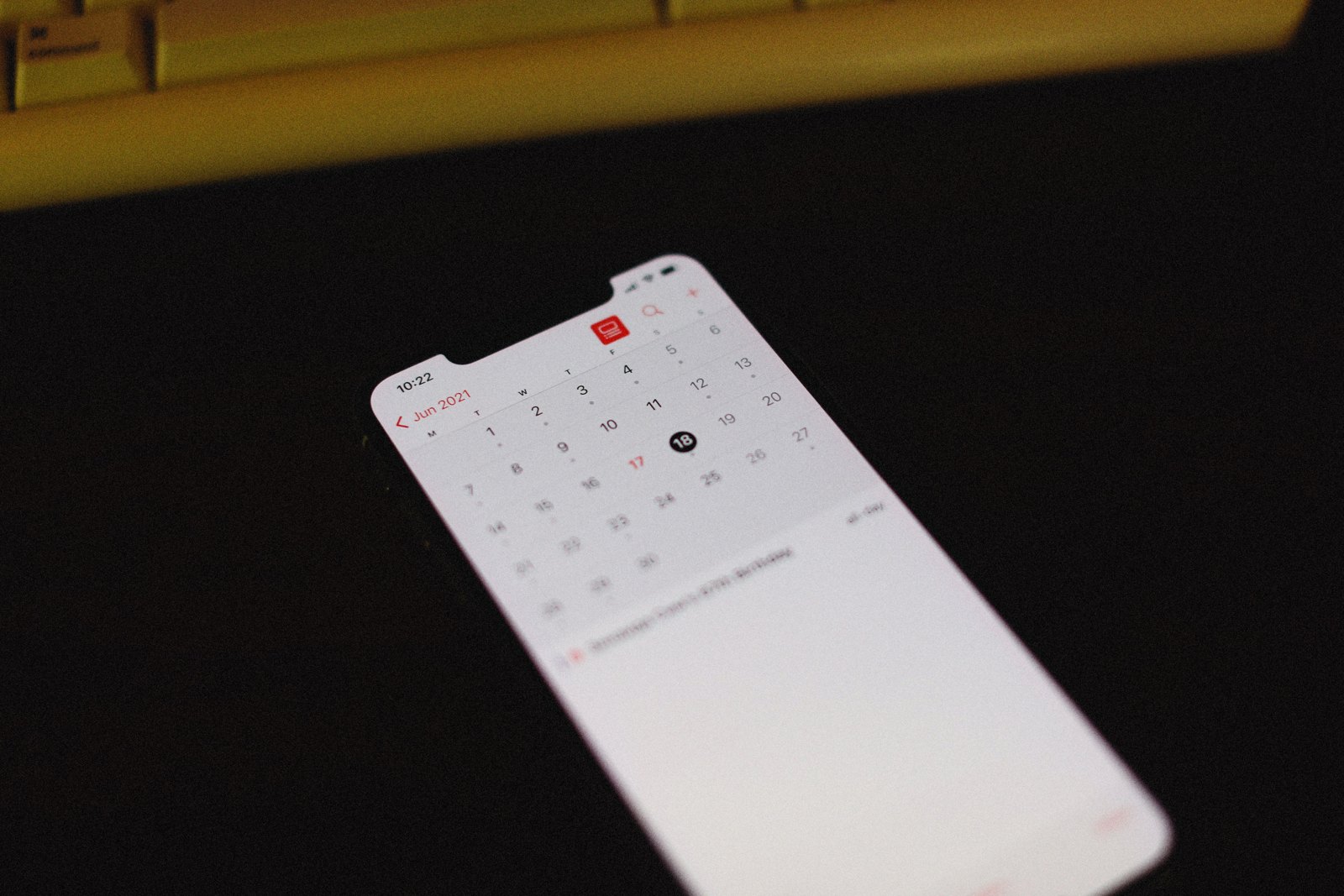
The cover photo is a contextual calendar-on-phone image, not a screenshot of Google Calendar or a representation of a particular phone model.
About the photograph
Contextual calendar-on-phone illustration; not a screenshot of Google Calendar.
Source notes
Reporting record
techduopulse stores source destinations privately. Public notes remain non-clickable so every visitor journey stays on this website.
Source note: Google Calendar Help on sync troubleshooting
Primary source · Cross-device event behaviour, mobile history limit and safe troubleshooting orderSource note: Google Calendar Help on calendar sharing
Primary source · Sharing workflow, permissions, recipient invitation and work or school restrictionsSource note: Google Calendar Help on notifications
Primary source · Personal notification settings, defaults, event overrides and phone-to-computer notification syncSource note: Google Calendar Help on Apple Calendar
Primary source · Google-account calendar setup and feature limits in Apple CalendarSource note: Google Calendar Help on calendar imports
Primary source · ICS and CSV import, guest and conference-data omissions, and repeating-event limitationSource note: Google Calendar Help on computer-calendar connections
Primary source · View-only versus editable computer-app connections and calendar-address distinctionSource note: Google Calendar Help on missing alerts
Primary source · Event, calendar, browser, permission and operating-system notification checksInitial 15 October 2026 explainer based on current Google Calendar Help documentation. It separates same-account sync, calendar sharing, app compatibility and notifications; distinguishes import from continuing sync; and prioritises reversible troubleshooting with backup-aware stop points rather than account removal or phone resets.